Independent knowledge base software guide Evidence-led Updated 2026

Zendesk Knowledge Base: Setup, Pricing, Permissions, and AI Search
Zendesk Knowledge Base is the knowledge-management component of Zendesk’s customer-service platform. It lets teams publish customer-facing help articles, maintain internal agent knowledge, restrict articles to selected audiences, connect knowledge to support workflows, analyze search behavior, and provide AI-generated answers from approved content.
Zendesk now calls the product Zendesk Knowledge. The customer-facing website is the Help Center, while the knowledge base is the organized collection of categories, sections, and articles inside that site. Older tutorials may still use the former product name Zendesk Guide.
Zendesk Knowledge is generally a strong fit when a business already uses—or plans to use—Zendesk Support and wants articles integrated with tickets, agents, customer requests, search, widgets, analytics, and AI. A simpler standalone knowledge base, internal wiki, or docs-as-code platform may be more appropriate when those Zendesk support workflows are not required.
Readers seeking Zendesk’s own documentation can start with the official Zendesk Knowledge resources. The guide below focuses on what the product does, how to set it up, which plan distinctions matter, and what to verify before committing to it.
Zendesk Knowledge, Help Center, and Support are different layers
The terms often appear together, but each refers to a different part of the Zendesk experience.
| Zendesk term | What it means | Why the distinction matters |
|---|---|---|
| Zendesk Knowledge | The current knowledge-management product and administration environment. | This is where teams create, govern, restrict, search, and maintain knowledge content. |
| Help Center | The customer-facing support website. | It can include the knowledge base, customer request portal, and a community when the selected plan supports it. |
| Knowledge base | Company-authored articles arranged into categories and sections. | This is the self-service content readers search and browse. |
| Zendesk Support | The ticketing and support-operations product. | Knowledge can be used inside agent ticket workflows and can also be added to eligible Support subscriptions. |
| Zendesk Suite | A bundled customer-service offering that combines Support with multiple channels and features. | Suite plans include a knowledge base, but plan capabilities differ. |
| Zendesk Guide | The previous product name still found in older documentation, URLs, and customer accounts. | Legacy Guide plan tables should not be treated as current purchasing information. |
Zendesk’s current Help Center documentation describes the knowledge base as the official content provided by the organization. It also distinguishes it from the customer portal and community functions that may appear in the same Help Center.
How Zendesk Knowledge is packaged and priced
The plan structure requires careful reading because public pricing, Zendesk Suite tiers, Knowledge entitlements, and Support add-ons do not use one simple label.
Zendesk’s Knowledge plan documentation currently identifies:
- Knowledge Professional, included with Suite Growth and Suite Professional and available as a paid addition to Zendesk Support plans.
- Knowledge Enterprise, included with Suite Enterprise and Enterprise Plus and available as a paid addition to Zendesk Support plans.
The current U.S. Zendesk pricing page also shows that Suite Team includes a knowledge base. That entry tier provides a more limited feature set than the Professional and Enterprise Knowledge configurations.
| Configuration | Current public pricing or purchasing route | Knowledge consideration |
|---|---|---|
| Suite Team | $55 per agent per month with annual billing; $69 with monthly billing | Includes a knowledge base and one Help Center, but has important limits on permissions, theme code editing, metadata, and other advanced capabilities. |
| Suite Professional | $115 per agent per month with annual billing; $149 with monthly billing | Zendesk’s plan documentation associates Suite Professional with Knowledge Professional and more advanced support and analytics capabilities. |
| Suite Enterprise + Copilot | Custom pricing | Relevant when the organization needs advanced governance, custom roles, approval workflows, sandbox capabilities, and other enterprise controls. |
| Zendesk Support plus Knowledge | Support Team starts at $19 per agent per month with annual billing; the Knowledge add-on price is not publicly listed | Zendesk states that Knowledge Professional or Enterprise can be added to Support plans. Obtain a written quote for the exact combination. |
Zendesk help documentation still references Suite Growth, while the current public U.S. pricing page emphasizes Suite Team, Suite Professional, and Enterprise + Copilot. Treat the subscription screen in the account—or a written Zendesk quote—as the source of truth for the configuration being purchased.
Do not compare plans only by the headline agent price. The qualifying configuration may also depend on the number of agents, Help Centers, brands, AI usage, external search records, custom roles, sandboxes, data controls, or add-ons.
Set up a Zendesk knowledge base in a controlled sequence
A useful setup connects plan verification, information architecture, article creation, permissions, preview, and reader testing. Creating a Help Center without those decisions can produce a site that exists but does not serve the intended audience safely.
1. Confirm the plan and administrator roles
Confirm that the account includes the required Knowledge entitlement and that the planned features belong to that tier. The account owner is required to enable the Help Center, while a Zendesk Support administrator is required to activate it for end users.
Zendesk distinguishes several knowledge roles in its roles and privileges documentation:
- Anonymous user: a visitor who is not signed in.
- End user: a customer or other reader who has created an account and signed in.
- Knowledge Viewer: an internal staff member who can read but cannot receive article editing or publishing permissions.
- Knowledge Agent: a Support agent who may receive article-management permissions.
- Knowledge admin: an administrator with full access to Knowledge content and settings.
A Support role does not by itself determine every article privilege. Article viewing and management permissions are configured separately.
2. Enable the Help Center in setup mode
In Zendesk, the account owner can open the product menu, select Knowledge, and choose Get started. The Help Center begins in setup mode, allowing agents and administrators to organize and preview it before ordinary end users can access it.
Use setup mode to confirm the audience, naming, navigation, branding, permissions, languages, and initial article set. Do not activate the Help Center merely because the default theme renders correctly for an administrator.
3. Set the default language before creating articles
Zendesk recommends setting the Help Center’s default language before adding articles. The source locale for new articles defaults to that language, and a mismatch can cause content not to appear as expected.
Help Center languages are configured separately from languages enabled in Zendesk Support. That difference becomes important when the site includes translated articles or localized request forms.
4. Design the category, section, and article structure
The traditional Zendesk structure has three primary levels:
- Categories are the highest-level containers.
- Sections group related articles and can contain subsections where supported.
- Articles contain the published instructions, explanations, and troubleshooting content.
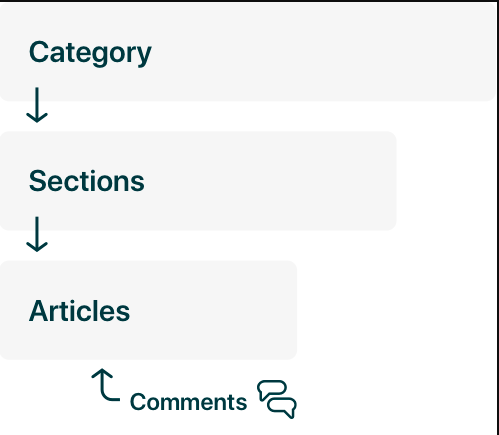
A Help Center must have at least one category, and a category needs a visible section. A section does not become visible to readers until it contains an article they are permitted to see. If the Help Center contains only one category, Zendesk hides that category level from end users and displays its sections.
Use customer tasks and recognizable language rather than mirroring the support organization chart. A small initial structure might use categories such as Getting Started, Account Management, Billing, and Troubleshooting.
Documentation conflict to verify: Zendesk’s March 2026 feature-expansion announcement says flexible hierarchies with up to five subsections are rolling out to all Suite and Knowledge plans. The August 2026 product-limits page still labels five section levels as Enterprise-only. Confirm the capability in the specific account before designing a deep hierarchy around it.
5. Create and configure the first useful article
A Knowledge admin—or an agent with suitable management permissions—can select Add → Article. The current article-creation documentation supports formatted text, links, images, tables, labels, content tags, attachments, callouts, accordions, tabs, Markdown, and permitted HTML.
Before saving, configure the article’s operational settings:
- Management permissions: who can edit and publish it.
- Owner: the person or group accountable for maintaining the current content.
- Placement: the section or sections in which it should appear.
- Author: the person displayed as the article’s author.
- Viewing permissions: who may read it.
- Labels and content tags: additional classification and search information where the plan supports them.
- Comments, attachments, and template: optional settings according to the article’s purpose and plan.
Owner and author are not interchangeable. The author can preserve historical attribution, while the owner identifies who is responsible for the article now.
A fictional first article might be titled Reset your account password, placed in a Getting Started section, visible to signed-in customers, and owned by the Account Support team. Its instructions should state prerequisites, the exact recovery steps, the expected result, and what to do when the reset email does not arrive.
6. Save, preview, publish, and test
Zendesk lets authorized users save a new article as a draft or work in progress, preview it in the Help Center, or publish it. Preview the article itself and the surrounding navigation before launch.
Test with at least three identities:
- An author or publisher who completes the intended editing and publishing workflow.
- An allowed reader who finds the article through navigation, search, and a direct URL and opens every required attachment.
- A denied reader who attempts the same page, search, direct link, file, widget, and AI-answer paths.
Activate the Help Center only after the intended public and restricted experiences have been verified. A successful Knowledge-admin preview is not evidence that ordinary readers receive the correct access.
Viewing permissions and publishing permissions are separate
Zendesk permissions operate at the article level. Reading access determines who can see the article; management access determines which agents can create, edit, review, publish, unpublish, or archive it.
| Permission type | Controls | Important limitation |
|---|---|---|
| Viewing permission | Whether an article is public or limited to selected user segments. | Applied to articles, not independently to the category or section. |
| Management permission | Which agents may edit and publish the article. | Professional plans combine edit and publish rights; Enterprise can separate them. |
| Knowledge-admin privilege | Full Knowledge administration and access. | Article view restrictions do not hide content from Knowledge admins. |
| Article ownership | Who is accountable for reviewing and maintaining the content. | Changing the author does not necessarily change the operational owner. |
Set reader access with user segments
Zendesk’s article-view permissions support these principal options:
- Visible to everyone: no sign-in is required.
- Signed-in users: authenticated internal or external end users.
- Agents and admins: internal staff content.
- Custom user segments: audiences defined through supported users, organizations, groups, or tags.
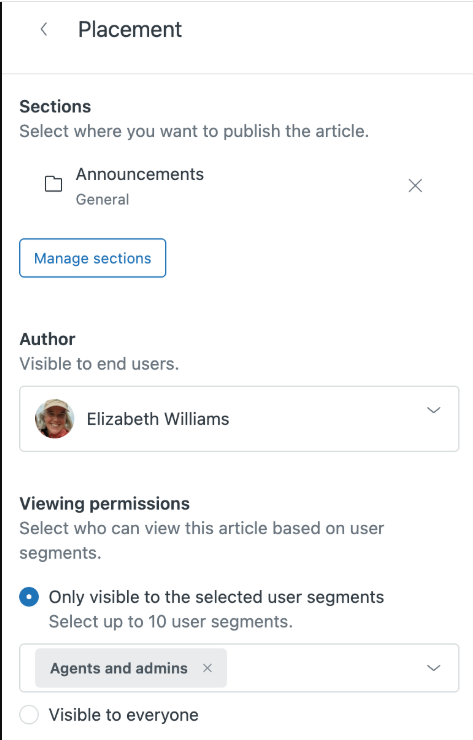
Suite Team is limited to content visible to everyone or to signed-in users. It cannot restrict an article to agents and admins or to a custom user segment. Higher plans support custom segmentation, while selecting multiple user segments for one article requires Enterprise.
An article can currently use up to 10 selected user segments when the plan supports that configuration. The article editor also supports placing one article in up to 10 sections across brands.
Do not describe a category or section as independently secured. If every article in a section is internal, end users do not see the section. If one article in that section is public to them, the section becomes visible, even though its other articles remain restricted.
Set agent editing and publishing rights separately
Zendesk’s management-permissions documentation distinguishes the Professional and Enterprise models:
- On Suite Growth, Suite Professional, and Knowledge Professional, edit and publish permissions are granted together to an agent user segment.
- On Enterprise plans, editing and publishing can be assigned separately to different agent segments.
This distinction matters when authors should draft and update content but only designated publishers should make it live. Zendesk currently supports up to 200 management-permission groups, subject to the documented product limits.
Governance ranges from drafts to Enterprise approval workflows
Basic article creation and drafts are different from a formal editorial workflow. Select the required plan according to how content must move from authoring to publication.
Drafts and combined publishing rights
On Knowledge Professional configurations, authors can save drafts and collaborate before an authorized person publishes them. Because edit and publish permissions are combined for custom management groups on Professional, the organization needs a clear operating process when only a few people should publish.
Team Publishing on Enterprise
Zendesk’s Team Publishing workflow adds explicit states such as work in progress, ready for review, and ready to publish. Reviewers can return an article for changes, approve it for later publication, or publish it when they have the necessary management permission.
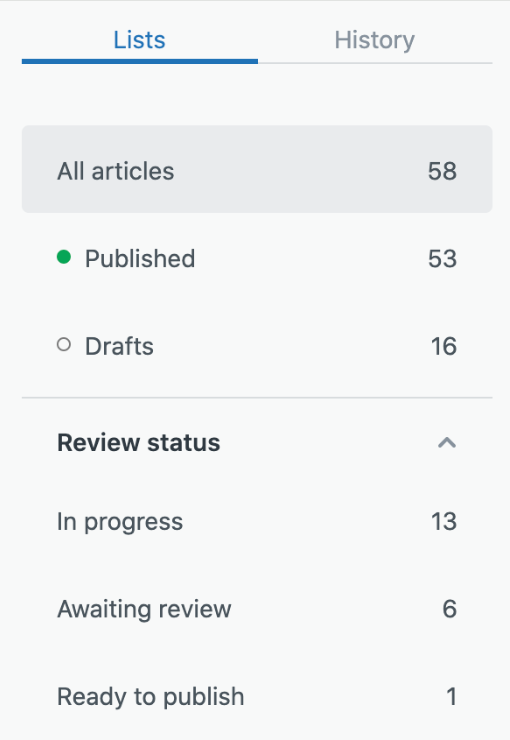
Enterprise permissions can also separate editors from publishers. That separation is important for organizations that require a controlled approval gate rather than relying on a status label or informal review.
Article ownership and verification reminders
Article verification is a maintenance signal. Zendesk’s verification rules can automatically unverify matching articles and email their owners when a review is due.
A rule can filter content by attributes such as owner, author, brand, category, label, section, permission group, or user segment. Zendesk currently allows up to 20 verification rules. The owner receives the reminder and cannot be replaced with an arbitrary notification list.
Verification does not prove factual accuracy. It shows that the article has been marked current within the organization’s workflow. A meaningful review still requires a knowledgeable person to compare the instructions with the actual product, policy, or process.
Zendesk provides several distinct search experiences
“Zendesk search” can refer to several different interfaces. The search-method documentation distinguishes:
| Search method | Where it appears | What it does |
|---|---|---|
| Instant search | As a reader types in the Help Center search box | Uses partial-word matching against article titles. |
| Native Help Center search | On the full search-results page | Uses full-word search across titles, body text, and labels. |
| Article suggestions | While a reader enters a support-request subject | Suggests articles using titles, content, labels, or tags. |
| Knowledge in the agent context panel | Inside agent ticket workflows | Suggests and searches for content that agents can link or quote in replies. |
| Generative search | On the Help Center search-results page and supported widget experiences | Produces a direct AI-generated answer derived from top permitted search results. |
Evaluate these experiences separately. A title can perform well in instant search while a customer’s natural-language query performs poorly in native search or generative search.
How generative search currently works
Zendesk’s generative-search documentation states that the feature is available on all Suite and Knowledge plans and is active by default. It generates answers from the leading search results and displays links to the source articles.
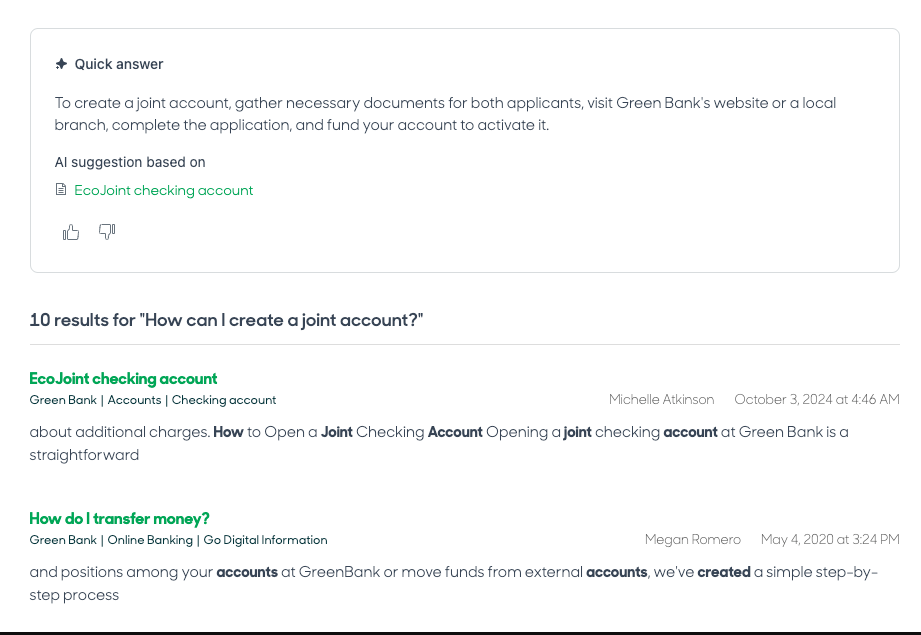
Readers receive generated content only from articles they have permission to view. That is useful, but it should still be tested with allowed and denied identities, direct source links, changed permissions, and restricted content.
All Suite and Knowledge plans currently include up to 100,000 eligible generative searches per month. Accounts exceeding the allowance can purchase the Generative Search Extender add-on. The allowance is measured in eligible search queries that produce a generated answer—not in AI-agent automated resolutions.
Standard themes released after March 26, 2025 support generative search by default. A Help Center created earlier with a customized theme may require a theme update before generated answers appear.
Generative search does not make weak content reliable. Zendesk itself emphasizes that answer quality depends on the knowledge content and the query. Test current-policy questions, prerequisites, missing-answer cases, conflicting articles, stale sources, and questions that should not receive a definitive response.
Federated search and external sources
Zendesk announced in March 2026 that federated search, flexible hierarchies, article multiplacement, AI writing tools, and AI article translation were being expanded to all Suite and Knowledge plans.
Plan-specific capacity still matters. Zendesk’s current product-limits page lists external-record allowances of 10,000 on Team, 50,000 on Growth and Professional, and 100,000 on Enterprise, with additional capacity available for purchase.
Before connecting external repositories, verify the source of truth, indexing method, permission behavior, refresh timing, deletion propagation, supported files, and what happens when synchronization fails.
Search and article analytics should drive maintenance decisions
Zendesk’s Search dashboard reports how readers interact with Help Center search. It includes metrics such as:
- Total searches.
- Searches returning no results.
- Average click-through rate.
- Tickets created after a search.
- Common query strings.
- Searches with no clicks.
- Top-clicked articles for particular queries.
The dashboard can be filtered by time, brand, search channel, user role, and locale. Zendesk currently retains up to 390 days of Search dataset history.
Use these reports to form a maintenance loop:
- Identify a frequent no-result or low-click query.
- Determine whether the answer is missing, badly titled, inaccessible, or written with different terminology.
- Create or improve the article.
- Repeat the search as the intended reader.
- Monitor subsequent queries and support contacts.
A view, click, or lower ticket-to-search ratio does not by itself prove that an issue was resolved. Metric definitions, exclusions, user behavior, and other support changes must be considered before making deflection claims.
Customization, languages, domains, and SEO vary by plan
Themes and customization
Zendesk creates a new Help Center with a default theme. Administrators can change branding through standard controls, while qualifying plans allow more extensive HTML, CSS, and JavaScript theme editing.
Theme code editing is not available on Suite Team. A custom theme can also create maintenance work when Zendesk introduces new features, as the generative-search theme requirement demonstrates.
Evaluate the exact customization requirement before selecting a plan: colors and logos, layout changes, reusable templates, custom pages, GitHub-managed themes, or deeper custom development are not equivalent needs.
Multiple languages
Zendesk’s multilingual documentation states that organizations outside Suite need Support Professional or Enterprise with Knowledge Professional or Enterprise for multilingual support.
Each Help Center language must be enabled, and articles, categories, and sections require corresponding translated content. A translated article needs translated parent pages in the same language to appear in the expected hierarchy.
If a language is enabled but an article has no translation, a reader may see a page error or be directed elsewhere rather than automatically receiving the source-language article. Define an explicit fallback strategy and test each locale.
AI article translation is among the tools Zendesk expanded across Suite and Knowledge plans in 2026. Machine-generated translations still require review for terminology, product names, legal meaning, links, screenshots, and audience suitability.
Custom domain and host mapping
By default, the Help Center uses a Zendesk subdomain. Zendesk’s host-mapping documentation explains how to connect a branded subdomain such as support.example.com using a CNAME record and hosted SSL.
Host mapping changes the public Help Center URL. It does not mean that every Zendesk agent, administration, API, or authentication URL moves to that branded domain.
SEO capabilities and limits
Zendesk Help Center URLs contain an article ID and readable slug. Changing the article title updates the slug without changing the underlying article ID, helping old article URLs continue to resolve.
Zendesk also documents canonical tags, hreflang annotations for localized pages, HTTPS, mobile-responsive themes, and an automatic XML sitemap. The XML sitemap is not available on Suite Team and is not generated for a closed Help Center that requires sign-in.
These features support crawlability but do not guarantee rankings. Article quality, intent match, internal links, external references, site changes, redirects, and search-engine behavior still matter.
Know the limits that can affect the implementation
Zendesk’s current product-limits documentation includes many thresholds. The following are among the most consequential for planning:
| Item | Current documented maximum | Practical consequence |
|---|---|---|
| Non-archived articles | 40,000, excluding translations | Large libraries need an archiving and content-lifecycle strategy. |
| Article or translation size | 1 MB per translation | Very long pages or heavy hidden HTML may require restructuring. |
| Articles in one section | 5,000 | A single oversized section can become difficult to browse even before reaching the limit. |
| Attachments per article | 500 | Large file libraries should not rely on one article as a document repository. |
| Attachment size | 20 MB per file | Larger downloads need another approved delivery path. |
| Categories | 100 | Information architecture should prioritize reader tasks rather than uncontrolled category growth. |
| Sections in one category | 100 | Navigation and search quality are likely to become concerns well before the technical limit. |
| Article verification rules | 20 | Review logic may need to group content by owner, risk, category, or label. |
| User segments | 200, unavailable on Suite Team | Complex private-audience models require a qualifying plan and manageable group design. |
| Management-permission groups | 200, unavailable on Suite Team | Editorial roles should remain understandable rather than creating a permission group for every exception. |
Media-library capacity is also plan-dependent: Zendesk currently documents 15,000 media items for Suite Team, 70,000 for Growth and Professional, and 150,000 for Enterprise and above.
Use limits as architecture inputs, not targets. A section containing thousands of articles may be technically permitted while remaining unusable for customers.
Migration, backup, and exit require API-level planning
Zendesk supports several migration approaches: manual copy and review for small sets, professional services, marketplace migration tools, and a programmatic Help Center API migration.
The official migration sequence shows why the project is more than importing article HTML:
- Create or import authors as Zendesk users.
- Create categories.
- Create user segments when required.
- Create sections and record their destination IDs.
- Create articles with the correct author and section IDs.
- Upload inline images and other attachments and replace source URLs.
- Import article comments when they are in scope.
The destination IDs created in earlier steps are needed by later records. A rerunnable migration should preserve stable source IDs and source-to-destination mappings so retries do not create uncontrolled duplicates.
The Help Center API respects the requesting user’s access
Zendesk’s Help Center API documentation states that responses are filtered according to the permissions of the user on whose behalf the request is made. An export performed as an ordinary reader may therefore omit restricted content that an authorized agent or administrator can retrieve.
For multiple brands, API requests also need the correct brand-specific subdomain. Confirm the export identity, brand, locale, permissions, and required objects before treating a result set as complete.
Zendesk’s article-backup example is not a complete Help Center backup
Zendesk provides a developer tutorial for copying article HTML through the Help Center API. The example downloads articles for a selected language into dated folders and can support article-level recovery.
However, Zendesk explicitly states that the sample code is instructional and unsupported. The tutorial also leaves article images outside its backup scope. A complete exit plan may additionally need categories, sections, translations, users, permissions, attachments, comments, themes, custom assets, URLs, redirects, integrations, and administrative settings.
Test the actual export path before purchase or renewal. Open representative files, inspect hierarchy and assets, and document what requires custom API work or manual transformation.
When Zendesk Knowledge is a strong fit
Zendesk Knowledge is worth serious consideration when:
- The organization already runs Zendesk Support or wants an integrated customer-service suite.
- Agents need to find, link, quote, flag, or create knowledge while working on tickets.
- The Help Center should combine self-service content with customer requests and, on qualifying plans, community functions.
- The team needs both public articles and restricted customer, partner, or internal content.
- Search analytics, article reporting, user feedback, and support interactions should exist in the same ecosystem.
- The organization wants standard and generative search backed by the same governed content.
- A higher plan can be justified for approval workflows, granular publishing rights, multiple brands, advanced analytics, or enterprise administration.
When another platform may fit better
Reconsider Zendesk Knowledge when:
- The organization needs only a lightweight standalone FAQ and does not need Zendesk ticketing or agent workflows.
- The primary use case is an employee wiki with broad collaboration, database-like pages, or project-management workflows.
- Technical documentation requires docs-as-code, repository-native reviews, extensive API-reference generation, or complex versioned product documentation.
- A low-cost reader-heavy internal library is needed and agent-based pricing produces unnecessary cost.
- The organization requires a simple structured export or complete self-service backup without API development.
- The required permissions, publishing separation, identity controls, brands, or languages are available only on a Zendesk plan outside the approved budget.
The relevant comparison is not Zendesk versus every knowledge-base product. It is Zendesk’s qualifying configuration versus the smallest alternative that satisfies the same audience, access, publishing, search, analytics, integration, migration, and cost requirements.
Zendesk Knowledge launch checklist
- Confirm the current Suite or Support-plus-Knowledge entitlement and written price.
- Identify the public, signed-in, partner, and internal audiences.
- Set the default Help Center language before creating content.
- Design categories and sections around reader tasks.
- Create representative public and restricted articles.
- Assign article owners separately from historical authors.
- Configure viewing and management permissions at article level.
- Test draft, review, approval, publication, version, and verification workflows available on the plan.
- Run standard and generative search tests using customer language.
- Verify analytics definitions and establish an owner for search gaps and stale content.
- Test custom domain, languages, themes, files, mobile display, and SEO behavior where applicable.
- Confirm product limits against the expected content and external-source volume.
- Perform an API export or migration pilot and document what it does not preserve.
- Preview as an author, allowed reader, denied reader, and anonymous visitor where relevant.
- Activate the Help Center only after its content, access, search, and support paths pass review.
Zendesk Knowledge is most valuable when the knowledge base is treated as part of the support operation rather than a separate article repository. The product provides a broad set of publishing, access, search, analytics, integration, and AI capabilities, but the useful configuration depends heavily on the selected plan, permissions model, content-governance needs, and exit requirements.
Official Zendesk plan, pricing, setup, permission, search, analytics, limits, localization, migration, and API documentation checked on November 2, 2026. No live Zendesk account or vendor trial was used for this guide.