Independent knowledge base software guide Evidence-led Updated 2026

What Is a Knowledge Base in CRM? How to Integrate It with Your CRM
Customer data often lives in your CRM, while answers live somewhere else: help center articles, internal documents, product notes, support scripts, or team knowledge trapped in chat threads. That gap slows agents down and creates inconsistent customer experiences.
A knowledge base in CRM is a searchable library of support, sales, product, and process information connected to your customer relationship management system. It helps agents and teams find accurate answers inside the CRM, using customer context such as account history, plan, product, ticket type, lifecycle stage, and previous interactions.
When done well, a CRM knowledge base brings customer context and verified answers into one workflow. It supports faster service, better self-service support, more consistent responses, and smarter customer service automation.
What Is a Knowledge Base in CRM?
A knowledge base in CRM is a searchable repository of articles, FAQs, troubleshooting guides, product documentation, policies, scripts, and best practices connected to or embedded inside a CRM system. It helps support, sales, and customer success teams access relevant answers in the same place where they manage customer relationships and interactions.
In simple terms, the CRM stores who the customer is and what has happened with them. The knowledge base stores what the right answer or next step should be.
Together, they create a CRM knowledge base: a practical system for finding, sharing, updating, and applying knowledge in customer-facing workflows.
A CRM knowledge base can be used internally by employees, externally by customers, or both. For example, an agent may use an internal troubleshooting guide while a customer uses a public help center article based on the same approved source of knowledge.
CRM vs Knowledge Base vs CRM Knowledge Base
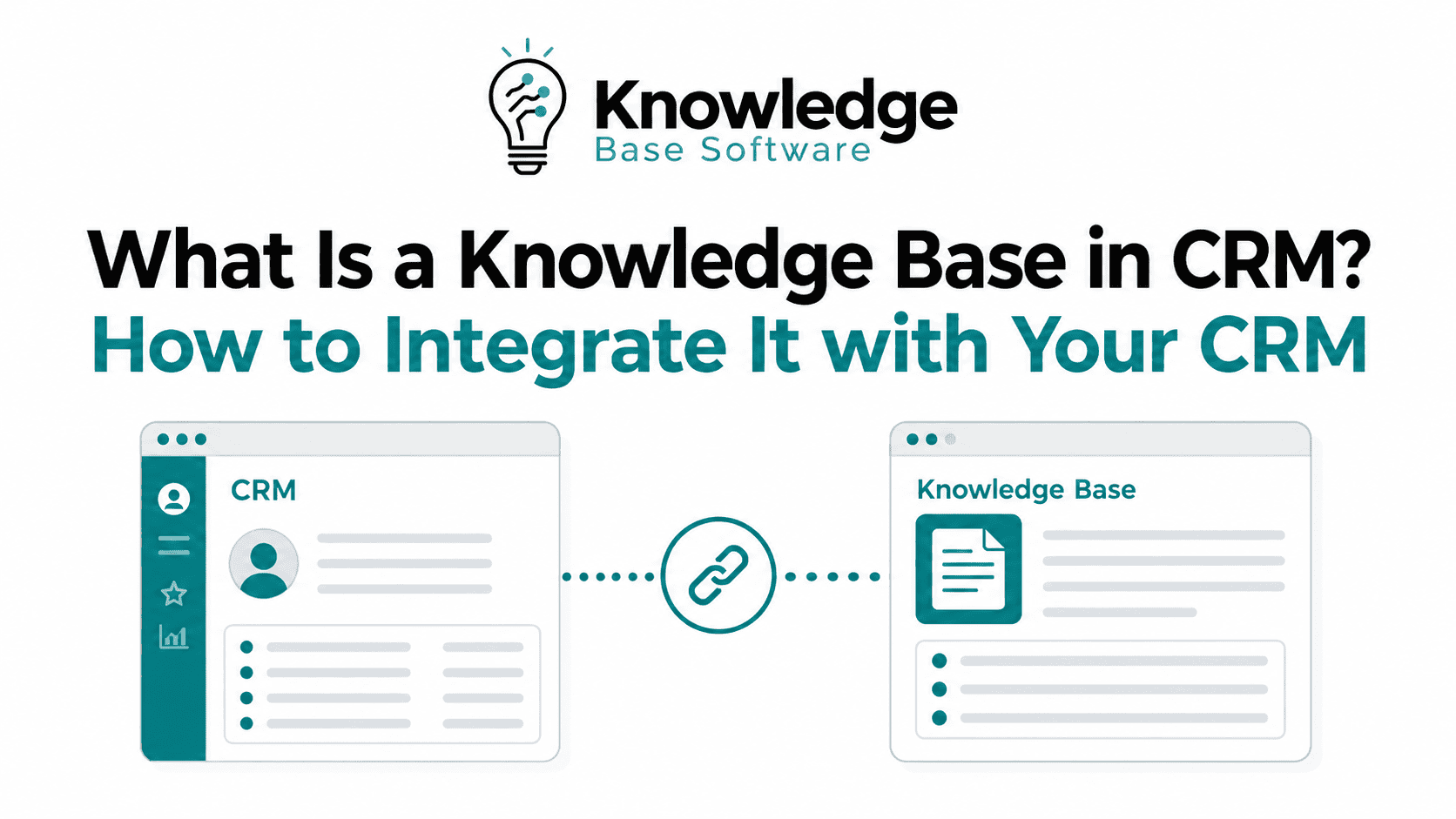
Although CRM and knowledge base tools often work together, they are not the same thing. A CRM manages customer relationships and records. A knowledge base manages information and answers. A CRM knowledge base connects both.
| System | Main Purpose | Typical Users | Common Content or Data | Best Used For |
|---|---|---|---|---|
| CRM | Manage customer relationships, contacts, accounts, deals, tickets, and interactions | Sales, support, customer success, marketing, managers | Customer profiles, contact history, deals, activities, cases, notes | Tracking customer relationships and managing workflows |
| Standalone Knowledge Base | Store and organize helpful information | Customers, employees, agents, partners | FAQs, tutorials, product docs, policies, troubleshooting guides | Helping users find answers independently |
| CRM Knowledge Base | Connect customer context with relevant answers inside the CRM | Support agents, sales reps, CRM admins, customer success teams | CRM-linked articles, internal guides, suggested solutions, scripts, playbooks | Resolving customer issues faster and more consistently |
| Help Center | Provide public self-service content for customers | Customers and prospects | Public articles, FAQs, onboarding guides, how-to content | Reducing repetitive support requests and improving self-service |
| Knowledge Management System | Govern how organizational knowledge is created, reviewed, shared, and maintained | Knowledge managers, operations teams, service leaders | Internal documentation, processes, training materials, content governance workflows | Managing knowledge quality, ownership, and lifecycle |
A standalone knowledge base may answer common questions. A CRM knowledge base goes further by showing the right answer in the right customer context.
For example, a customer on an enterprise plan may need a different troubleshooting path from a customer on a basic plan. A CRM knowledge base can use CRM fields, account history, product version, or ticket category to recommend more relevant answers.
How a CRM Knowledge Base Works
A CRM knowledge base works by connecting customer data with approved knowledge content.
Here is a typical workflow:
- A customer contacts support or submits a ticket.
- The CRM displays the customer’s profile, plan, purchase history, product usage, previous conversations, and issue category.
- The integrated knowledge base searches or recommends relevant articles, troubleshooting guides, macros, scripts, or escalation steps.
- The agent reviews the suggested content and sends the right answer, links an article, or follows the recommended process.
- If the issue is resolved, the CRM records the interaction and the knowledge base records content usage.
- Analytics show which articles were helpful, which searches returned no results, and where new content is needed.
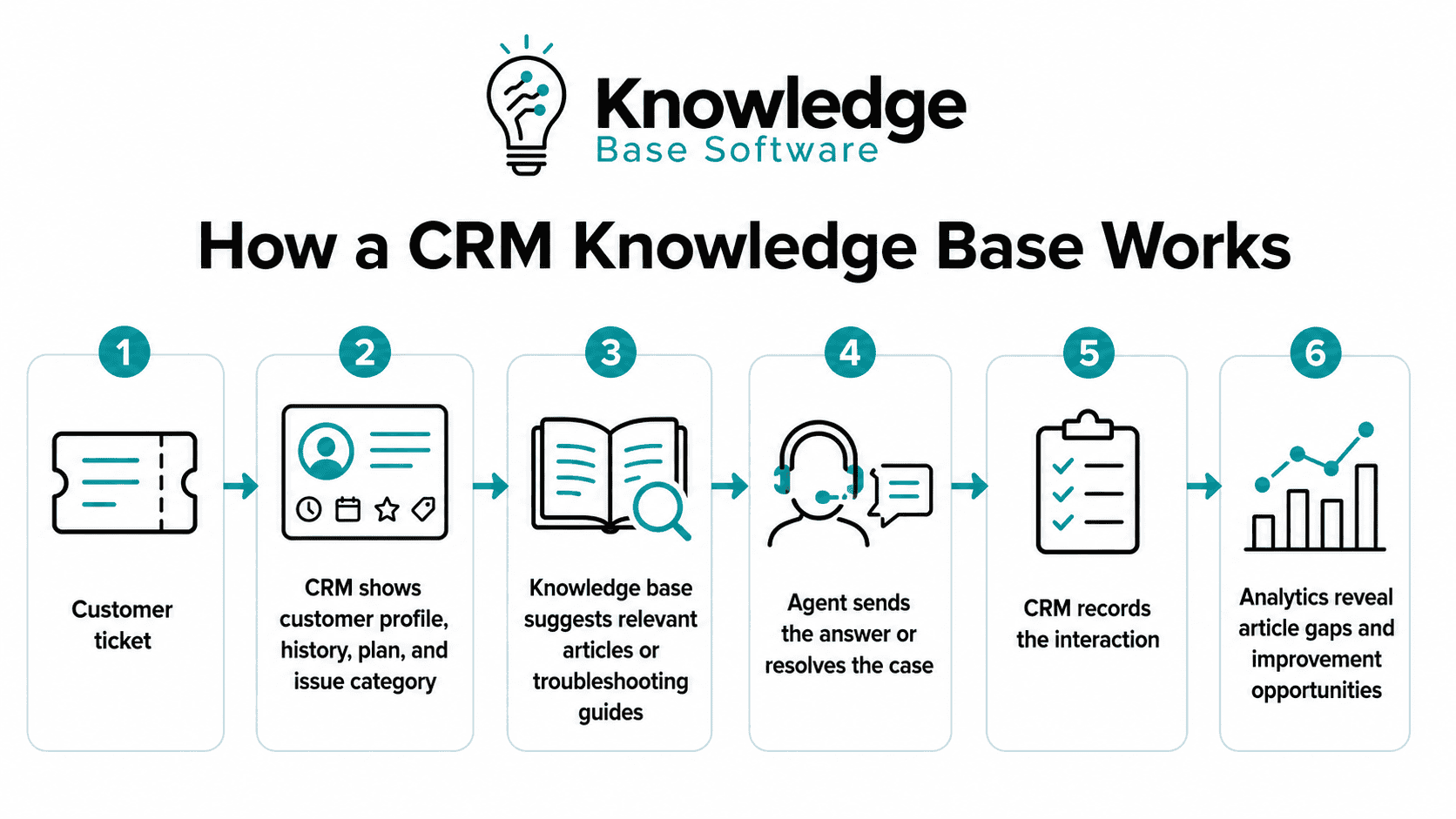
This workflow helps teams move from “searching everywhere for an answer” to “using verified knowledge directly inside the customer workflow.”
A CRM knowledge base can also support automation. For example, if a ticket is categorized as “billing issue,” the system may recommend billing policy articles. If the ticket relates to a known bug, the system may suggest a known-issues article or escalation path.
Why Integrating a Knowledge Base with CRM Matters
Integrating a knowledge base with CRM matters because customer-facing teams need both context and answers. A CRM without knowledge can show what happened, but not always what to do next. A knowledge base without CRM context can provide answers, but not always the most relevant one for that specific customer.
A knowledge base CRM integration helps solve that problem.
Faster support responses
Agents do not need to search across shared drives, Slack messages, old tickets, or separate documentation portals. Relevant articles can appear inside the ticket or account view.
Less tab-switching for agents
Tab-switching slows work and increases the chance of error. When knowledge is embedded inside the CRM, agents can stay in one workflow while reviewing customer context and approved answers.
More consistent answers
Without a shared customer support knowledge base, two agents may answer the same question differently. A CRM knowledge base gives teams a single source of truth for policies, troubleshooting steps, product explanations, and internal procedures.
Improved first-contact resolution
When agents can quickly find the right answer, they are more likely to resolve issues during the first interaction. This can improve first-contact resolution and reduce unnecessary escalations.
Reduced repetitive tickets
A strong help desk knowledge base can support self-service support. Customers can answer common questions before opening a ticket, while agents can send relevant articles when direct help is still needed.
Better onboarding and training
New support agents and sales reps can learn faster when approved knowledge is available inside the CRM. They can see not only customer records but also the best-practice answers and workflows connected to those records.
Stronger self-service
A CRM knowledge base can power customer portals, help centers, chatbots, and AI assistants. When public articles are connected to internal customer workflows, teams can identify gaps and improve the self-service experience.
Improved content gap analysis
CRM and knowledge base analytics together show what customers are asking, what agents are searching for, and which articles are missing or outdated.
Better AI accuracy with verified content
An AI-powered knowledge base is more reliable when it is grounded in approved, current, and well-governed content. AI assistants, article recommendations, and answer suggestions should use verified knowledge rather than outdated documents or unstructured internal conversations.
Common Use Cases for a CRM Knowledge Base
A CRM knowledge base can support multiple teams, not just customer support.
Customer support ticket resolution
Agents can use suggested articles, troubleshooting flows, response templates, and escalation procedures while working on tickets.
Sales enablement
Sales teams can access product comparisons, pricing guidance, objection-handling scripts, battlecards, and implementation notes directly from lead or deal records.
Customer onboarding
Customer success teams can connect onboarding guides, setup checklists, tutorials, and training materials to each customer’s lifecycle stage.
Technical troubleshooting
Technical support teams can use product version, device type, error code, or issue category to locate the most relevant troubleshooting steps.
Policy and billing answers
Agents can quickly find refund policies, billing rules, contract terms, cancellation processes, and account management instructions.
AI chatbot and virtual assistant support
Chatbots can use the knowledge base to answer common questions. When the knowledge base is connected to CRM data, the chatbot may also personalize responses based on customer type, product, or plan where appropriate.
Internal training
A CRM knowledge base can serve as an internal training hub for support teams, sales teams, and customer success teams.
Customer self-service portals
Public help centers can allow customers to solve common issues without contacting support, while internal CRM records help teams understand which content customers use most often.
Integrating a Knowledge Base with CRM: Main Methods
There is no single best way to integrate a knowledge base with CRM. The right method depends on your CRM, knowledge base software, technical resources, data structure, security needs, and workflow complexity.
| Integration Method | Best For | Pros | Cons | Technical Complexity |
|---|---|---|---|---|
| Native CRM knowledge base module | Teams using a CRM with built-in knowledge management | Fast setup, fewer tools, unified interface, easier permissions | May be limited compared with specialized knowledge base software | Low to Medium |
| Marketplace/native app integration | Teams using popular CRM and knowledge base platforms | Faster than custom builds, often includes prebuilt workflows | May depend on vendor limitations and available connectors | Low to Medium |
| API-based integration | Teams needing flexible, custom workflows | Strong customization, can sync data between systems, supports advanced use cases | Requires technical planning, testing, and maintenance | Medium to High |
| Middleware/iPaaS integration | Teams connecting multiple tools without heavy custom development | Good for multi-system workflows, easier automation, scalable | May add cost and dependency on another platform | Medium |
| Embedded knowledge widget | Teams that want article search inside CRM screens | Quick access for agents, minimal workflow disruption | May not provide deep two-way sync or advanced analytics | Low to Medium |
| Custom two-way sync | Enterprise teams with complex governance, data, or compliance needs | Maximum flexibility, deep CRM context, tailored permissions and workflows | Highest cost, longer implementation, requires ongoing support | High |
1. Native CRM knowledge base module
Some CRM platforms include built-in knowledge management features. This can be a good option if your team wants a simple, unified system and does not need heavy customization.
2. Marketplace or native app integration
Many knowledge base tools offer native integrations with popular CRMs. These integrations may allow agents to search articles, attach content to tickets, view customer history, and track article usage.
3. API-based integration
An API-based integration is useful when you need more control. For example, you may want to recommend articles based on CRM fields such as product, customer segment, subscription plan, region, language, or ticket type.
4. Middleware or iPaaS integration
Middleware tools and integration platforms can connect CRM, help desk, knowledge base, chat, analytics, and automation tools. This approach is useful when you need workflows across multiple systems.
5. Embedded knowledge widget
An embedded widget allows agents to search or view knowledge base articles inside the CRM interface. It is often easier to deploy than a full data integration.
6. Custom two-way sync
A custom two-way sync may be needed when CRM data and knowledge base content must update each other. For example, article usage data may flow into CRM reports, while CRM ticket categories may influence article recommendations.
How to Integrate a Knowledge Base with Your CRM Step by Step
A successful knowledge base CRM integration is not just a technical task. It requires content strategy, workflow design, governance, permissions, testing, and continuous improvement.
1. Audit your existing knowledge base content
Before integrating anything, review your current content. Identify outdated articles, duplicate answers, missing guides, unclear categories, and content that should not be shown to customers.
A weak knowledge base becomes a bigger problem when integrated into CRM. If agents see outdated or inaccurate suggestions, they will stop trusting the system.
2. Define CRM workflows and use cases
Decide where knowledge should appear inside the CRM. Common locations include:
- Ticket view
- Contact profile
- Account record
- Deal record
- Case management screen
- Chat workspace
- Customer success dashboard
- Sales enablement panel
Define the exact use cases. For example, support agents may need troubleshooting articles, while sales reps may need competitive battlecards and pricing guidance.
3. Choose the right integration method
Choose between native CRM functionality, marketplace integrations, API integration, middleware, embedded widgets, or custom sync.
Start with the simplest method that meets your workflow needs. Avoid over-customizing before your team has validated the core process.
4. Map CRM fields to knowledge categories and tags
CRM fields can help the knowledge base recommend better content. Useful fields may include:
- Product
- Product version
- Customer plan
- Industry
- Region
- Language
- Issue category
- Ticket priority
- Lifecycle stage
- Customer type
- Error code
- Subscription status
For example, a ticket tagged “login issue” for an enterprise customer using version 3.2 may trigger a different article than a similar ticket from a free-plan user.
5. Set user permissions and access rules
Not every article should be visible to every user. Some content may be public, some may be agent-only, and some may be restricted to managers, legal teams, finance teams, or enterprise support.
Set clear permissions for:
- Public customer-facing articles
- Internal support articles
- Sales-only content
- Technical escalation guides
- Compliance or legal policies
- Region-specific content
- Partner-only documentation
Security and access control are essential, especially when CRM data includes sensitive customer information.
6. Configure search, article suggestions, and article linking
Make it easy for agents to find and use the right content. Configure:
- Keyword search
- AI-powered article recommendations
- CRM field-based suggestions
- Article linking inside tickets
- Suggested replies
- Internal notes
- Public article sharing
- Related articles
- Recently used articles
A good CRM knowledge base should not force agents to manually search every time. It should proactively suggest relevant content when the context is clear.
7. Set sync frequency and version control
Decide how often content and metadata should sync between systems. Some updates may need real-time sync, while others may be fine on a scheduled basis.
Use version control so teams can see:
- Who changed an article
- What changed
- When it changed
- Which version is published
- Which version is pending review
- Whether the content is approved for customer-facing use
8. Test with real tickets and common customer questions
Before full rollout, test the integration with real-world scenarios. Use common support tickets, sales questions, onboarding tasks, and escalation cases.
Check whether the system recommends the right articles and whether agents can easily apply them.
9. Train support and sales teams
Even the best knowledge base software will fail if teams do not use it. Train users on:
- Where to find knowledge inside the CRM
- How to search effectively
- How to link articles to tickets
- How to suggest edits
- How to flag outdated content
- When to use internal vs customer-facing content
- How AI suggestions should be reviewed
10. Measure performance and improve continuously
After launch, track adoption, content quality, and support outcomes. Use analytics to improve both the CRM workflow and the knowledge base content.
Knowledge base integration is not a one-time setup. It is an ongoing CRM knowledge management process.
What Content Should Be Included in a CRM Knowledge Base?
A CRM knowledge base should include content that helps teams answer customer questions, resolve issues, sell effectively, onboard users, and maintain consistent processes.
Common content types include:
- FAQs
- Troubleshooting guides
- Product documentation
- How-to tutorials
- Billing and account policies
- Escalation procedures
- Sales battlecards
- Customer onboarding guides
- Internal playbooks
- Known issues and release notes
- Response templates
- Setup checklists
- Product limitations
- Integration guides
- Security and compliance notes
- Refund, cancellation, and renewal policies
The best content mix depends on your business model. A SaaS company may need technical troubleshooting guides and onboarding tutorials. A professional services firm may need process documentation and client communication playbooks. An ecommerce business may need order, return, shipping, and warranty policies.
The key is to organize content around real customer questions and real CRM workflows.
Key Features to Look For in CRM Knowledge Base Software
When evaluating CRM knowledge base software, look beyond basic article storage. The right platform should support search, governance, integration, analytics, and continuous improvement.
Important features include:
Powerful search
Agents and customers should be able to find relevant content quickly using natural keywords, categories, tags, and filters.
AI article recommendations
AI-powered article suggestions can help agents find answers faster, especially when the system uses ticket context, customer data, and approved knowledge.
CRM field-based suggestions
The knowledge base should recommend content based on CRM fields such as issue type, product, plan, region, language, or customer segment.
Version control
Version history helps teams manage changes, avoid confusion, and maintain content accuracy.
Permissions and access control
The system should clearly separate public, internal, restricted, and role-based content.
Analytics
Useful analytics may include article views, searches with no results, article feedback, ticket deflection, agent usage, and content gaps.
Article feedback
Agents and customers should be able to rate articles, flag outdated information, or suggest improvements.
Multilingual support
Global teams may need translated articles, language-specific search, and region-specific documentation.
API access
API access supports custom workflows, data sync, automation, and advanced CRM integration.
Workflow automation
Automation can route content requests, trigger review cycles, notify content owners, and recommend updates based on usage.
Approval workflows
Approval workflows help keep sensitive or high-impact content accurate before publishing.
Easy content editor
A simple editor helps subject matter experts create and update content without relying on developers.
Customer-facing and internal views
The platform should support both external help center articles and internal-only content for employees.
Example of a CRM Knowledge Base in Action
Imagine a SaaS company that sells project management software to small businesses and enterprise customers.
A customer submits a ticket that says:
“I cannot invite a new team member to my workspace.”
Inside the CRM, the agent sees:
- Customer plan: Business
- Product version: Web app
- Region: North America
- Account status: Active
- Ticket category: User management
- Previous ticket: Billing admin permissions issue
- Customer role: Workspace admin
Because the knowledge base is integrated with the CRM, the system automatically recommends three internal articles:
- “How to troubleshoot user invitation issues”
- “Business plan seat limits and permissions”
- “Admin role requirements for workspace invitations”
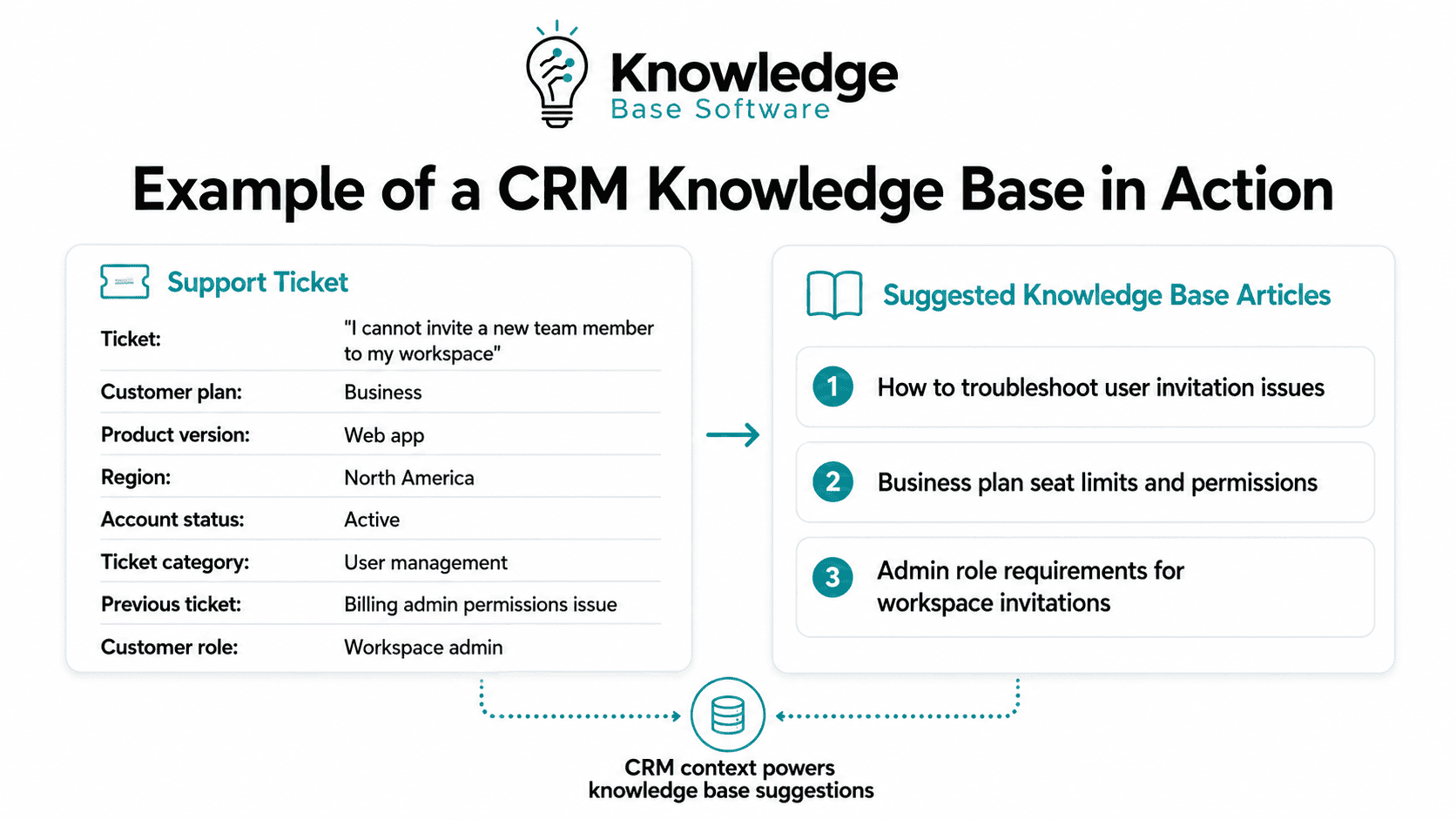
The agent opens the first article and follows a troubleshooting checklist. The issue is not a bug; the customer has reached the seat limit for the Business plan. The agent then sends a customer-facing article explaining how to add seats and links the article to the ticket.
The ticket is resolved faster because the agent did not need to search separate systems. The response is consistent because it came from approved content. The knowledge manager can later see which articles were viewed, which article helped resolve the ticket, and whether agents searched for related topics with no results.
Over time, the company notices repeated searches for “seat limit error message.” The knowledge manager creates a new article specifically about that error message and updates the CRM article recommendations.
That is CRM knowledge management in practice: customer context, verified answers, agent workflow, analytics, and continuous improvement working together.
Common Mistakes to Avoid
A CRM knowledge base can improve support operations, but only if it is implemented carefully. Avoid these common mistakes.
Integrating before cleaning outdated content
If your content is inaccurate, integration will simply make bad information easier to find. Audit and clean your content first.
Poor tagging and taxonomy
Without clear categories, tags, and naming conventions, article recommendations become less useful. Build a simple taxonomy that matches customer questions and CRM workflows.
No content owner
Every important article should have an owner. Without ownership, content becomes outdated and nobody knows who is responsible for fixing it.
No review schedule
Set a review cadence based on content risk. Billing policies, legal notices, and technical troubleshooting guides may need more frequent reviews than general onboarding content.
Ignoring permissions
Do not expose internal scripts, escalation rules, pricing exceptions, or sensitive policies to customers. Use clear access controls.
Over-customizing too early
Complex custom integrations can slow implementation. Start with the workflow that creates the most immediate value, then expand.
Not training agents
Agents need to know how to search, use, link, and improve knowledge base content. Without training, adoption may remain low.
Not measuring adoption
Track whether agents actually use the CRM knowledge base. If adoption is low, investigate whether search, relevance, layout, or training is the problem.
Treating integration as a one-time setup
Knowledge changes as products, policies, and customer needs change. Integration requires ongoing maintenance.
Letting AI answer from unverified or outdated content
AI can help suggest answers, but it should be grounded in reviewed, approved, and current knowledge. Do not allow AI-generated answers to replace governance.
KPIs to Track After CRM Knowledge Base Integration
To understand whether your knowledge base CRM integration is working, track both operational metrics and content quality metrics.
Important KPIs include:
First-contact resolution rate
Measures how often issues are resolved in the first interaction. A strong CRM knowledge base can support better first-contact resolution by helping agents find answers quickly.
Average handle time
Tracks how long agents spend resolving tickets or calls. Relevant knowledge suggestions may reduce time spent searching for answers.
Ticket-deflection signal
A ticket-deflection signal estimates journeys that did not lead to assisted contact under a stated event definition and time window. Do not label them solved or prevented tickets without an explicit success signal or causal evidence.
Time to first response
Shows how quickly agents respond to customers. Easy access to articles and templates can help speed up initial replies.
Agent adoption rate
Tracks how often agents use the knowledge base inside CRM.
Article views inside CRM
Shows which articles agents use most often during customer interactions.
Search terms with no results
Reveals content gaps. If agents repeatedly search for a topic and find nothing, that topic may need a new article.
Article feedback score
Shows whether agents and customers find articles useful.
Escalation rate
Tracks how often tickets are escalated. Better knowledge may reduce unnecessary escalations.
CSAT
Customer satisfaction can help show whether support quality is improving after integration.
Content update frequency
Measures whether the knowledge base is actively maintained or becoming stale.
CRM Knowledge Base Integration Checklist
Use this checklist before and after integrating a knowledge base with your CRM.
- Audit existing knowledge base content.
- Remove or archive outdated articles.
- Identify the most common support, sales, and onboarding questions.
- Define where knowledge should appear inside the CRM.
- Choose the integration method: native, app, API, middleware, widget, or custom sync.
- Map CRM fields to categories, tags, and article recommendations.
- Define public, internal, restricted, and role-based content permissions.
- Set ownership for every critical article.
- Create an approval workflow for high-risk content.
- Configure CRM search and article suggestion rules.
- Test the integration with real tickets and customer scenarios.
- Train agents, sales reps, and customer success teams.
- Create a process for agents to suggest edits.
- Track searches with no results.
- Monitor article usage inside CRM.
- Review high-impact articles regularly.
- Keep AI suggestions grounded in verified content.
- Measure KPIs such as first-contact resolution, average handle time, ticket deflection, and CSAT.
- Improve the knowledge base continuously based on CRM and support analytics.
Best Practices for Maintaining a CRM Knowledge Base
A CRM knowledge base is only useful when the content stays accurate, relevant, and easy to find.
Assign article owners
Every important article should have a named owner responsible for accuracy and updates.
Review high-risk content more frequently
Billing, legal, security, compliance, and technical troubleshooting content should have a tighter review schedule.
Use clear categories and tags
A simple, consistent taxonomy helps search, filtering, article suggestions, and reporting.
Archive outdated articles
Do not leave old content live if it no longer applies. Archive outdated articles or clearly mark them as deprecated.
Let agents suggest edits
Agents are close to customer questions. Give them an easy way to flag missing, unclear, or outdated content.
Use analytics to find gaps
Review failed searches, low-rated articles, common ticket categories, and repeated escalations.
Align content with CRM workflows
Do not organize content only around internal department structures. Organize it around how agents and customers actually search for answers.
Separate customer-facing and internal content
Internal notes, escalation steps, pricing exceptions, and agent scripts should not appear in public help center content.
Test AI-generated suggestions before publishing
AI can support article drafts, answer suggestions, and content recommendations, but human review is essential for accuracy, tone, compliance, and customer trust.
FAQ About Knowledge Base in CRM
1. What is a knowledge base in CRM?
A knowledge base in CRM is a searchable library of articles, FAQs, guides, policies, troubleshooting steps, scripts, and best practices connected to a CRM system. It helps teams find accurate answers while viewing customer records, tickets, deals, or account history.
2. What is the difference between a CRM and a knowledge base?
A CRM stores customer data, interactions, accounts, deals, tickets, and relationship history. A knowledge base stores answers, documentation, guides, and support content. A CRM knowledge base combines customer context with useful information so teams can respond more effectively.
3. Why should you integrate a knowledge base with CRM?
You should integrate a knowledge base with CRM to help agents find relevant answers faster, reduce tab-switching, improve response consistency, support self-service, identify content gaps, and connect customer issues with approved knowledge.
4. How do you integrate a knowledge base with CRM?
You can integrate a knowledge base with CRM using a native CRM module, marketplace app, API integration, middleware or iPaaS platform, embedded widget, or custom two-way sync. The best method depends on your workflow, tools, technical resources, and security requirements.
5. What is an example of a CRM knowledge base?
An example is a support agent opening a customer ticket in the CRM and seeing recommended troubleshooting articles based on the customer’s product, plan, ticket category, and past interactions. The agent can then send the right article or follow an internal resolution guide.
6. Is a CRM knowledge base for customers or employees?
It can be for both. Customers may use public help center articles for self-service support, while employees use internal guides, scripts, policies, troubleshooting steps, and escalation procedures inside the CRM.
7. What content should a CRM knowledge base include?
A CRM knowledge base should include FAQs, troubleshooting guides, product documentation, how-to tutorials, billing policies, onboarding guides, sales playbooks, internal procedures, known issues, release notes, and escalation steps.
8. Can AI use a CRM knowledge base?
Yes. AI can use a CRM knowledge base to recommend articles, suggest answers, power chatbots, assist agents, and identify content gaps. For best results, AI should be grounded in accurate, approved, and regularly reviewed knowledge base content.
9. What are the best CRM knowledge base features?
Important features include powerful search, AI article recommendations, CRM field-based suggestions, permissions, analytics, article feedback, version control, approval workflows, multilingual support, API access, and separate customer-facing and internal content views.
10. How do you measure CRM knowledge base success?
You can measure success using first-contact resolution, average handle time, ticket deflection, time to first response, agent adoption, article views, searches with no results, article feedback, escalation rate, CSAT, and content update frequency.
Conclusion
So, what is knowledge base in CRM? It is the connection between customer context and trusted answers. A CRM stores customer data, history, tickets, deals, and relationships. A knowledge base stores the articles, guides, policies, scripts, and troubleshooting steps teams need to help those customers.
When the two systems are integrated, support, sales, and customer success teams can work faster and more consistently. Agents spend less time searching for answers. Customers receive clearer responses. Managers see where knowledge gaps exist. AI tools become more useful when grounded in verified content.
A CRM knowledge base is not just a documentation library. It is a practical customer service automation and CRM knowledge management layer that helps teams deliver better support at scale.