Independent knowledge base software guide Evidence-led Updated 2026

Mobile Knowledge Base Software: Best Practices for Field Teams, Frontline Workers, and Customers
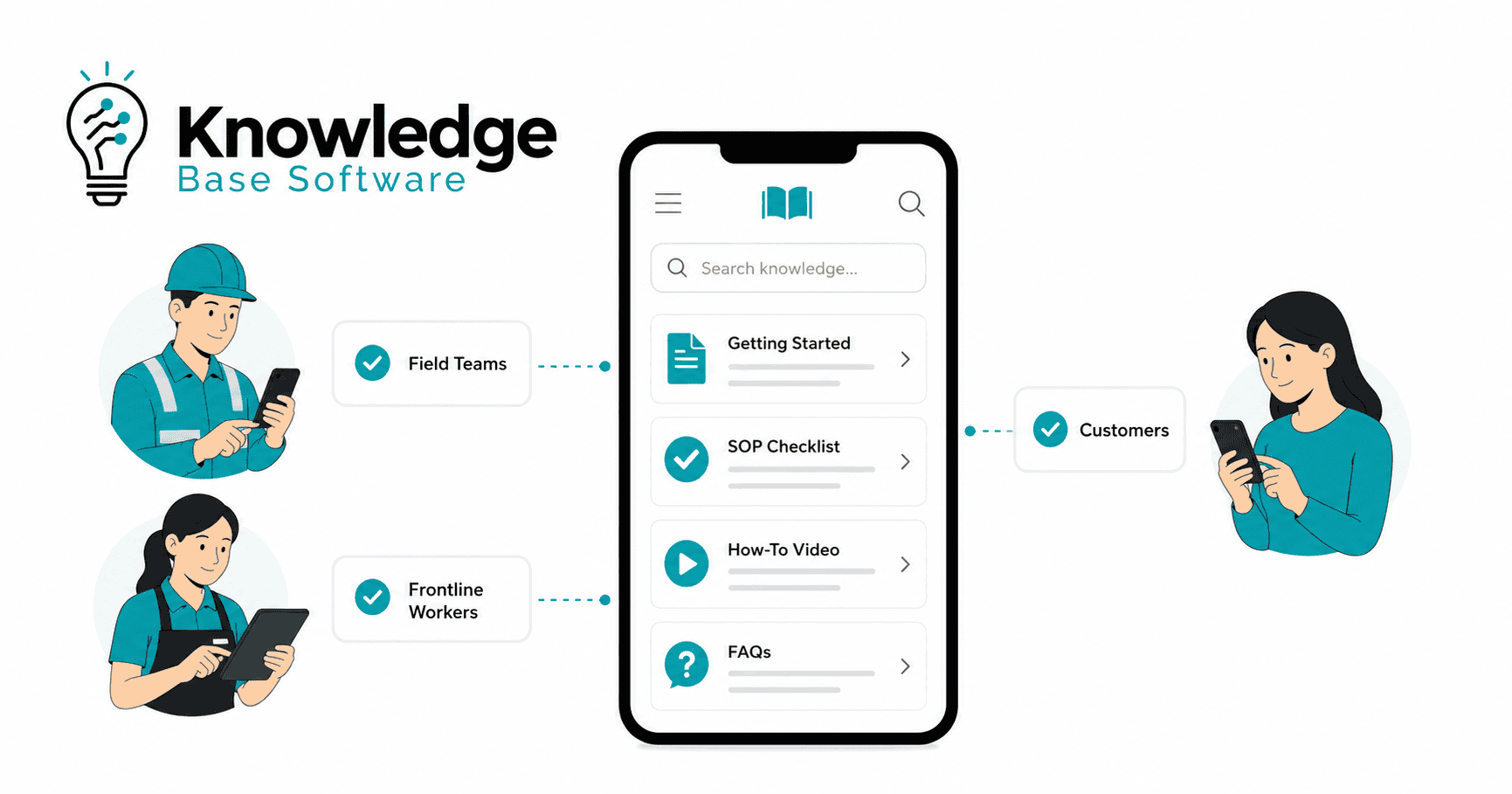
Mobile Knowledge Base Software gives employees, field teams, frontline workers, and customers fast access to trusted answers from a smartphone, tablet, or responsive help center. Instead of forcing users to search through long PDFs, desktop portals, email threads, or shared folders, it delivers task-specific knowledge at the exact moment someone needs it.
That matters because knowledge work no longer happens only at a desk. Technicians troubleshoot equipment on-site. Retail and hospitality teams need shift guidance while serving customers. Customers expect to solve simple issues from their phones without opening a ticket. Mobile devices account for 52.23% of worldwide desktop-vs-mobile web usage, according to StatCounter’s June 2026 data, and smartphone ownership is widespread across many surveyed advanced economies.
This guide explains what mobile knowledge base software is, how it supports field teams, frontline workers, and customers, which features matter most, and how to implement it without creating another unused content repository.
What Is Mobile Knowledge Base Software?
Mobile knowledge base software is a digital system for creating, organizing, governing, and delivering knowledge base content through mobile-friendly channels. It may be used as an internal knowledge base for employees, a customer-facing help center, a field service knowledge base, or a frontline knowledge management platform.
At its core, knowledge management software centralizes and organizes information so teams can access and share it efficiently. Common capabilities include search, content storage, file version history, access control, editing, and collaboration. Mobile knowledge base software adds a critical layer: it makes that knowledge usable on smaller screens, in real work environments, and often under time pressure.
A traditional desktop knowledge base is usually designed for office workers sitting at a computer. A mobile knowledge base is designed for moments such as:
- A technician standing next to unfamiliar equipment.
- A warehouse associate checking a safety procedure before using a machine.
- A restaurant manager reviewing an opening checklist before a shift.
- A customer troubleshooting a product from their phone.
- A support agent sharing an approved article during a live conversation.
A mobile knowledge base can include:
- Standard operating procedures, or SOPs.
- Troubleshooting guides.
- Product documentation.
- Safety procedures.
- Onboarding resources.
- FAQs.
- Policy documents.
- How-to videos.
- Checklists.
- Decision trees.
- Release notes.
- Compliance instructions.
- Equipment manuals.
- Customer support articles.
The best systems do not simply shrink desktop documentation into a phone screen. They restructure knowledge into searchable, scannable, task-based answers.
Why Mobile Knowledge Access Matters Now
Mobile access changes knowledge management because it moves answers closer to the point of work.
Field teams do not always have stable connectivity, a laptop, or time to call a senior technician. Frontline workers may not use corporate email, may share devices, or may rely on personal phones depending on company policy. Customers increasingly expect self-service to be available on any device and at any time.
Customer self-service is now a major part of support strategy. Salesforce defines customer self-service as a way for customers to find answers about products, services, and policies on their own through channels such as help centers, customer portals, and communities. Salesforce’s August 2023 State of the Connected Customer research reported that 61% of customers would rather use self-service for simple issues. Salesforce’s April 2024 State of Service research reported that self-service channels solved an estimated 54% of customer issues, on average, at organizations that used them. These are vendor-reported findings about self-service broadly—not global benchmarks for mobile knowledge base performance.
In a Gartner survey of 5,728 customers conducted in December 2023, 14% of customer service and support issues were fully resolved through self-service; among failed self-service cases, 43% involved customers being unable to find relevant content. The results describe self-service broadly and should not be treated as a benchmark for mobile knowledge bases.
That is the central lesson for mobile knowledge base software: access alone is not enough. The content must be findable, accurate, contextual, and easy to use in the user’s real environment.
When implemented well, a mobile knowledge base can help organizations:
- Reduce repeated questions.
- Improve first-time resolution.
- Shorten onboarding time.
- Standardize procedures across locations.
- Reduce avoidable escalations.
- Improve compliance communication.
- Increase customer self-service success.
- Give AI search and AI agents a more reliable knowledge foundation.
Mobile Knowledge Base Software for Field Teams
Field teams need knowledge while work is happening. They are not casually browsing documentation; they are trying to complete a task, fix an issue, inspect an asset, or explain a process to a customer.
Common Field Team Use Cases
Mobile knowledge base software is especially useful for:
- Field service technicians.
- Inspectors.
- Installers.
- Maintenance crews.
- Utilities teams.
- Logistics teams.
- Telecom teams.
- Medical device service teams.
- Construction supervisors.
- Facilities teams.
A field service knowledge base may support tasks such as diagnosing an error code, identifying the correct replacement part, checking a safety requirement, reviewing a repair sequence, or confirming warranty guidance.
Best Content Types for Field Teams
Field teams usually need practical, task-specific content such as:
- Repair guides.
- Equipment manuals.
- Parts lookup guidance.
- Troubleshooting flows.
- Compliance checklists.
- Safety procedures.
- Job notes.
- Customer history summaries.
- Installation instructions.
- Preventive maintenance checklists.
- Escalation criteria.
- Photo-based examples of common issues.
The content should be written for the situation. A technician searching “unit not powering on” should not have to open a 90-page PDF. They should land on a short diagnostic flow that starts with the most likely causes and links to deeper reference material only when needed.
Required Mobile Features for Field Teams
Field teams should prioritize these capabilities:
- Offline access: Critical documents should remain available when cellular service is weak.
- Fast mobile search: Search should handle error codes, part names, synonyms, and natural language questions.
- Image and video support: Photos, diagrams, annotated screenshots, and short videos can reduce ambiguity.
- Barcode and QR code access: Scanning an asset tag can take the worker directly to the right manual or checklist.
- Field service management integrations: Knowledge should connect with work orders, assets, customer records, and service history.
- Role-based permissions: Technicians should see the knowledge relevant to their equipment, territory, certification, or customer type.
- Feedback buttons: Users should be able to flag outdated, unclear, or missing information immediately.
Field Team Metrics to Track
For field teams, measure the knowledge base against operational outcomes:
- First-time fix rate.
- Time to resolution.
- Repeat visits.
- Escalations.
- Technician productivity.
- Search success rate.
- Most-used articles.
- Failed searches.
- Content flagged as outdated.
- Time spent looking for information.
A mobile knowledge base should make field teams faster and more consistent, not just more documented.
Mobile Knowledge Base Software for Frontline Workers
Frontline workers often face a different knowledge problem. They may not be resolving complex technical issues, but they need accurate guidance during fast-moving shifts.
Common Frontline Worker Use Cases
Mobile knowledge base software can support frontline teams in:
- Retail.
- Hospitality.
- Healthcare.
- Manufacturing.
- Warehousing.
- Restaurants.
- Transportation.
- Facilities.
- Grocery.
- Field sales.
- Customer-facing service locations.
These teams often need quick access to procedures, policies, promotions, safety guidance, product details, HR information, and location-specific updates.
Best Content Types for Frontline Workers
Useful frontline content includes:
- SOPs.
- Shift instructions.
- Safety procedures.
- Product information.
- HR policies.
- Onboarding guides.
- Microlearning content.
- Compliance checklists.
- Opening and closing procedures.
- Incident response steps.
- Location-specific announcements.
- Visual job aids.
- Manager playbooks.
For frontline workers, the knowledge base should feel less like an archive and more like a daily work companion.
Required Mobile Features for Frontline Workers
Frontline environments need mobile knowledge management features such as:
- No corporate email requirement: Some frontline workers may not have company email accounts.
- Push notifications: Important updates can reach teams faster than bulletin boards or printed memos.
- Multilingual content: Content should reflect the languages used by the workforce.
- Low-bandwidth mode: Pages should load reliably in stores, warehouses, and facilities with inconsistent connectivity.
- Acknowledgments: Managers may need confirmation that workers read safety, compliance, or policy updates.
- Role and location segmentation: A cashier, warehouse picker, nurse, and store manager should not all receive the same knowledge stream.
- Simple navigation: Workers should not need training to find basic guidance.
Frontline Worker Metrics to Track
Track adoption and operational usefulness:
- Active users.
- Content views.
- Search success rate.
- Policy acknowledgment rate.
- Onboarding completion time.
- Compliance completion.
- Manager questions reduced.
- Content feedback volume.
- Location-level engagement.
For frontline teams, success is not only whether the knowledge base exists. Success is whether workers actually use it during the flow of work.
Mobile Knowledge Base Software for Customers
Customer-facing mobile knowledge base software usually appears as a responsive help center, support portal, public documentation site, or in-app support experience. Its job is to help customers find accurate answers without waiting for a support agent.
Common Customer Self-Service Use Cases
Customers use mobile knowledge bases to:
- Set up accounts.
- Troubleshoot product issues.
- Understand billing.
- Change settings.
- Learn product features.
- Track policies.
- Resolve login problems.
- Review return or refund instructions.
- Read release notes.
- Compare plan or feature details.
- Find next steps before contacting support.
Best Content Types for Customers
Customer-facing content should include:
- FAQs.
- Product guides.
- Troubleshooting articles.
- Setup instructions.
- Billing support.
- Account management guides.
- Return and refund instructions.
- Release notes.
- Known issue pages.
- Getting-started checklists.
- Short how-to videos.
- Contact support paths.
The most effective customer knowledge bases are built from real customer intent. Support tickets, failed searches, chatbot logs, sales questions, and product usage data should influence which articles are created first.
Required Mobile Features for Customers
A customer-facing mobile knowledge base should include:
- Responsive help center design: Pages should work smoothly on phones and tablets.
- SEO-friendly public articles: Helpful public articles can capture search demand and reduce support volume.
- Strong search experience: Search should understand synonyms, product names, common misspellings, and plain-language questions.
- Chatbot or AI search integration: AI should retrieve answers from approved content, not invent policy or technical details.
- Ticket deflection paths: Articles should provide a clear next step if self-service does not solve the issue.
- Feedback buttons: “Was this helpful?” signals can reveal weak content.
- Multilingual content: Customers should be served in the language they actually use.
Customer Metrics to Track
For customers, track:
- Ticket deflection.
- Search success rate.
- Article helpfulness.
- Support volume by topic.
- Customer satisfaction.
- Time to answer.
- Escalation rate after article view.
- Zero-result searches.
- Top failed queries.
- Conversion from help article to solved state.
Customer self-service should never be a dead end. If the article does not solve the problem, the next support path should be obvious.
Best Practices for Building a Mobile Knowledge Base
1. Design for Mobile Moments, Not Desktop Manuals
A mobile knowledge base should be designed around the moment of need. Ask: “What is the user trying to do right now?”
A field technician may need to confirm a wiring step. A frontline worker may need to check a refund policy while a customer is waiting. A customer may need to reset a password before a meeting. In each case, the answer must be short, direct, and easy to act on.
Use mobile-friendly formatting:
- Short paragraphs.
- Clear headings.
- Numbered steps.
- Bullet lists.
- Expandable details.
- Visual examples.
- Related links.
- Persistent search.
Google also recommends responsive design as an easy-to-maintain mobile configuration, and it emphasizes that mobile pages should contain equivalent content, headings, metadata, and structured data to desktop pages for mobile-first indexing.
2. Turn Long Documents Into Short, Task-Based Answers
Long PDFs and policy documents still have a place, but they should not be the primary mobile experience.
Break long documents into smaller articles such as:
- “How to inspect Model X before startup.”
- “What to do when error code E14 appears.”
- “How to process a damaged item return.”
- “How to reset your account password.”
- “How to acknowledge a safety update.”
Each article should answer one task or question. Link to the full manual only when necessary.
3. Build a Clear Taxonomy by Role, Location, Product, Equipment, and Task
A strong taxonomy prevents the knowledge base from becoming a dumping ground.
Useful taxonomy dimensions include:
- Role.
- Department.
- Location.
- Product.
- Equipment type.
- Customer segment.
- Region.
- Language.
- Task.
- Urgency.
- Compliance category.
For example, a mobile knowledge base for a retail chain might organize content by store role, region, department, promotion, and procedure. A field service knowledge base might organize by equipment family, model, error code, service task, and certification level.
4. Make Search Fast, Forgiving, and Synonym-Aware
Search is often the main interface of mobile knowledge base software. Users may not know the official name of a problem. They may search by symptom, part number, slang, error code, or customer wording.
Good search should support:
- Synonyms.
- Misspellings.
- Natural language questions.
- Filters.
- Suggested articles.
- Recent searches.
- Popular articles.
- Error codes.
- Product aliases.
- Multilingual queries.
Failed searches are some of the most valuable analytics in the system. They show what users need but cannot find.
5. Prioritize Offline Access for Field and Frontline Teams
Offline mode matters when users work in basements, remote sites, warehouses, rural areas, plants, hospitals, or crowded stores where connectivity is unreliable. For web-based mobile knowledge bases, service workers can help serve cached content when users are offline. For native mobile apps, offline-first architecture should support critical reads without network access.
Offline access should allow users to:
- Save key articles.
- Access assigned procedures.
- View images and diagrams.
- Complete checklists.
- Capture notes or feedback.
- Sync updates when connectivity returns.
Offline content must be governed carefully. Users should know when an article was last synced and whether a newer version is available.
6. Use Multimedia Carefully
Images and video can make mobile knowledge easier to understand, but they must be practical.
Use multimedia for:
- Before-and-after examples.
- Safety warnings.
- Step-by-step repairs.
- Visual inspection criteria.
- Product setup.
- Annotated screenshots.
- Common mistakes.
- Location-specific procedures.
Keep videos short. A two-minute clip that shows the exact action is often more useful than a 30-minute training recording.
7. Add Content Ownership, Approval Workflows, Review Dates, and Version History
A mobile knowledge base becomes risky when nobody owns the content.
Every important article should have:
- A named owner.
- A review date.
- An approval status.
- Version history.
- Last updated date.
- Audience tag.
- Escalation owner.
- Feedback path.
Knowledge-Centered Success (KCS®) guidance from the Consortium for Service Innovation emphasizes that article structure supports findability and usability for the intended audience, and that knowledge should improve over time through reuse, review, and feedback from the people who use it.
8. Use AI Search and AI Answers Only With Governed, Verified Content
AI can improve mobile knowledge access by summarizing articles, recommending answers, helping draft content, and interpreting natural language queries. But AI depends on the quality of the underlying content.
Before rolling out AI-powered knowledge base features, confirm that:
- Duplicate articles are removed or consolidated.
- Outdated content is archived.
- Permissions are respected.
- High-risk answers require approved sources.
- AI responses cite source articles.
- Users can escalate to a human or manager.
- Feedback loops exist for incorrect answers.
AI should make trusted knowledge easier to retrieve. It should not become a shortcut around governance.
9. Connect the Knowledge Base With Existing Workflows
Mobile knowledge base software should connect with the tools people already use, such as:
- Help desk software.
- CRM.
- Field service management software.
- HR systems.
- Intranet.
- Chat tools.
- Learning management systems.
- Asset management systems.
- Customer portals.
- Mobile workforce platforms.
The goal is to reduce switching. A technician should access relevant articles from a work order. A support agent should link an article from a ticket. A frontline worker should receive a procedure update from the same app used for shift communication.
10. Segment Access Without Creating Knowledge Silos
Access control is important, especially for internal policies, customer-specific instructions, safety procedures, and regulated content. But excessive segmentation can make knowledge harder to find.
Use permissions to protect sensitive content, but maintain shared knowledge where possible. For example, a general troubleshooting article may be visible to all technicians, while customer-specific contract instructions remain restricted.
11. Use Push Notifications Only for Important Updates
Push notifications are powerful because they reach users quickly. Overuse them and people will ignore them.
Use push notifications for:
- Safety alerts.
- Compliance updates.
- Critical policy changes.
- Urgent product issues.
- Location-specific incidents.
- High-priority operational changes.
Avoid pushing every new article. Let users subscribe to topics where possible.
12. Measure Article Performance and Continuously Improve
A mobile knowledge base should be managed like an operating system for knowledge, not a one-time content project.
Review:
- Top searches.
- Failed searches.
- Most-viewed articles.
- Least helpful articles.
- Stale content.
- Articles with high escalation rates.
- Articles with strong self-service signals, validated against resolution outcomes.
- Content gaps by audience.
- Feedback trends.
- Review completion rates.
The best knowledge bases improve because teams use analytics and frontline feedback to refine content continuously.
Must-Have Features Checklist
| Feature | Why It Matters | Best For | Evaluation Question |
|---|---|---|---|
| iOS and Android access | Supports workers and customers on common mobile devices | Field teams, frontline workers | Does the software provide a native or high-quality mobile experience on both platforms? |
| Responsive web help center | Makes public and internal content usable from any browser | Customers, employees | Does the help center work smoothly on mobile without losing content? |
| Offline mode | Keeps critical guidance available without reliable connectivity | Field teams, frontline workers | Can users access assigned content offline and sync updates later? |
| Fast search | Reduces time spent hunting for answers | All audiences | Does search handle symptoms, keywords, error codes, and plain-language questions? |
| AI-powered search | Helps users find relevant answers faster | Customers, agents, employees | Are AI answers grounded in approved knowledge articles with clear source links? |
| Permissions and role-based access | Protects sensitive information and personalizes content | Internal teams | Can content be segmented by role, location, customer, product, or certification? |
| Version control | Prevents outdated instructions from spreading | Compliance-heavy teams | Can users see the latest approved version and article history? |
| Approval workflows | Keeps high-risk content accurate before publication | Operations, HR, support | Can subject matter experts review and approve articles? |
| Analytics | Shows what works and what is missing | Knowledge managers | Can you track searches, failed searches, helpfulness, adoption, and stale content? |
| Multilingual support | Helps diverse teams and customers understand content | Global teams, customers | Can translations be managed, reviewed, and updated reliably? |
| Push notifications | Delivers urgent updates quickly | Frontline workers, field teams | Can notifications be targeted and limited to important content? |
| Feedback buttons | Captures user signals at the moment of need | All audiences | Can users flag unclear, missing, or outdated content? |
| Integrations | Places knowledge inside existing workflows | Support, field service, HR, IT | Does the system connect to CRM, help desk, FSM, chat, LMS, or HR tools? |
| QR/barcode access | Connects physical assets to digital knowledge | Field teams, warehouses | Can scanning an asset open the right article, checklist, or manual? |
| Security and compliance controls | Protects sensitive operational and customer information | Enterprises | Does the vendor support audit logs, SSO, access control, and compliance needs? |
Common Mistakes to Avoid
Copying Desktop Documentation Into a Mobile App Unchanged
A 50-page manual is not a mobile knowledge experience. Rewrite content into short, task-based articles.
Publishing Too Much Content Without Governance
More content can make search worse if articles are outdated, duplicated, or unowned.
Relying on AI Before Cleaning the Knowledge Base
AI search will surface weak content faster if the source knowledge is poor. Clean the knowledge base before scaling AI answers.
Ignoring Offline Access
If field or frontline teams work in low-connectivity environments, online-only access can fail at the exact moment it is needed.
Treating Employee and Customer Knowledge as the Same Experience
Customers need simple, public, brand-safe answers. Employees may need deeper operational detail, restricted content, and internal workflows.
Failing to Measure Search Failures and Content Gaps
Search failures reveal demand. Ignoring them means users keep asking managers, agents, or peers instead of using the knowledge base.
Overusing Push Notifications
Every notification teaches users whether the app is useful or noisy. Reserve push alerts for important updates.
Creating a Knowledge Base Without Assigning Content Owners
A knowledge base without owners becomes stale. Every critical article should have a person or team responsible for accuracy.
30-60-90 Day Implementation Plan
First 30 Days: Audit, Prioritize, and Design
Start with a focused discovery phase.
Actions:
- Audit existing documents, FAQs, SOPs, manuals, help articles, and training content.
- Define audiences: field teams, frontline workers, customers, support agents, or internal employees.
- Map the top questions, tasks, errors, and workflows.
- Identify high-risk content such as safety, compliance, legal, billing, and technical instructions.
- Choose initial taxonomy categories.
- Assign content owners.
- Define article templates.
- Select priority use cases for the first launch.
Deliverables:
- Content inventory.
- Audience map.
- Priority topic list.
- Governance model.
- Draft taxonomy.
- Pilot scope.
Days 31–60: Build, Rewrite, Configure, and Pilot
Now move from planning to execution.
Actions:
- Migrate only priority content.
- Rewrite long documents for mobile use.
- Configure permissions by role, location, product, or audience.
- Set up approval workflows.
- Add review dates.
- Configure analytics.
- Integrate with high-value systems such as help desk, CRM, field service software, HR tools, or chat.
- Pilot with one team, location, product group, or customer segment.
- Capture feedback quickly.
Deliverables:
- Mobile-ready priority articles.
- Pilot knowledge base.
- Access rules.
- Workflow integrations.
- Feedback process.
- Baseline analytics.
Days 61–90: Expand, Train, Measure, and Improve
Use pilot results to improve before scaling.
Actions:
- Expand to more teams, locations, or customer segments.
- Train users on search, feedback, and article contribution.
- Review analytics weekly.
- Close content gaps.
- Archive low-value or outdated content.
- Improve article titles and structure.
- Build a content review rhythm.
- Define monthly reporting for leadership.
Deliverables:
- Expanded rollout.
- Knowledge base adoption dashboard.
- Content improvement backlog.
- Governance cadence.
- KPI report.
The best implementation starts small, proves value, and expands with evidence.
How to Choose the Right Mobile Knowledge Base Software
Choosing the right mobile knowledge base software depends on the audience, content type, operational environment, and integration requirements.
Key Buyer Criteria
Evaluate vendors based on:
- Mobile experience.
- Search quality.
- Offline capability.
- Content governance.
- AI features.
- Analytics.
- Integrations.
- Security.
- Scalability.
- Ease of authoring.
- Localization.
- User adoption features.
- Total cost of ownership.
- Implementation support.
Questions to Ask Vendors
Ask:
- Does the software support native mobile apps, responsive web, or both?
- Can users access selected content offline?
- How does search handle synonyms, misspellings, and natural language?
- Can content be segmented by role, location, product, or customer?
- Does AI search cite approved source articles?
- What analytics are available for failed searches and article helpfulness?
- Can users submit feedback from mobile?
- How are approvals, review dates, and version history handled?
- Which systems does it integrate with?
- How does the platform support multilingual content?
- What security controls are included?
- How long does implementation usually take?
Understand the Software Category
Not every platform called a knowledge base solves the same problem.
- Customer support knowledge bases are best for public help centers, FAQs, ticket deflection, and customer self-service.
- Internal knowledge bases are best for company policies, IT help, HR content, and internal documentation.
- Frontline platforms are best for deskless workers, shift communications, task updates, acknowledgments, and mobile employee access.
- Field service knowledge tools are best for technicians, equipment manuals, troubleshooting, asset-specific knowledge, and offline access.
A lightweight tool may be enough for a small customer help center or internal FAQ. An enterprise platform is usually needed when you require offline access, complex permissions, multilingual governance, advanced analytics, AI grounding, compliance workflows, or deep integrations.
Buyer Evaluation Scorecard
| Category | Weight | What to Look For | Red Flags |
|---|---|---|---|
| Mobile user experience | 20% | Fast, intuitive, responsive, easy to search | Desktop portal simply resized for mobile |
| Search and findability | 15% | Synonyms, filters, natural language, failed-search analytics | Search only matches exact keywords |
| Offline access | 10% | Selective offline content, sync, version warnings | No offline mode or unclear sync behavior |
| Governance | 15% | Owners, approvals, review dates, version history | Anyone can publish anything without review |
| Integrations | 10% | Help desk, CRM, FSM, HR, chat, LMS, SSO | Knowledge is isolated from daily workflows |
| Analytics | 10% | Adoption, helpfulness, failed searches, stale content | Only page views are available |
| AI readiness | 10% | Source-grounded AI, permissions-aware answers, feedback loops | AI answers cannot show source content |
| Security and compliance | 10% | SSO, audit logs, permissions, data controls | Weak access control or unclear data handling |
How to Measure Success
A mobile knowledge base should be measured by audience-specific outcomes.
Field Team KPIs
Track:
- First-time fix rate.
- Repeat visits.
- Time to resolution.
- Escalations.
- Technician productivity.
- Offline article usage.
- Search success rate.
- Article feedback from technicians.
Frontline Worker KPIs
Track:
- Adoption rate.
- Active users.
- Content views.
- Policy acknowledgment rate.
- Onboarding time.
- Compliance completion.
- Manager interruptions.
- Location-level engagement.
- Shift readiness.
Customer KPIs
Track customer self-service outcomes with a balanced metric set:
- Ticket deflection as one signal among several.
- Article helpfulness.
- Search success.
- Support volume by topic.
- Customer satisfaction.
- Time to answer.
- Escalation after self-service.
- Resolved self-service sessions.
- Top failed searches.
Knowledge Operations KPIs
Track:
- Stale content percentage.
- Failed searches.
- Content gaps.
- Review completion rate.
- Duplicate articles.
- Articles without owners.
- Translation freshness.
- Feedback resolution time.
The most important metric is not article volume. It is whether the right users can find the right answer and complete the task correctly.
FAQs About Mobile Knowledge Base Software
What is mobile knowledge base software?
Mobile knowledge base software is a platform that lets employees, field teams, frontline workers, support agents, or customers access trusted knowledge from mobile devices. It usually includes search, article management, permissions, analytics, and mobile-friendly content delivery.
Who needs a mobile knowledge base?
Organizations with field teams, frontline workers, customer support teams, distributed employees, or customers who need self-service support can benefit from a mobile knowledge base. It is especially useful when users need answers away from a desk.
What is the difference between a mobile knowledge base and a help center?
A help center is usually a customer-facing self-service site. A mobile knowledge base can be broader. It may include a public help center, an internal employee knowledge base, a field service knowledge base, or a frontline worker app.
Does mobile knowledge base software work offline?
Some mobile knowledge base software supports offline access, but not all platforms do. Field and frontline teams should prioritize tools that allow selected content to be downloaded, used offline, and synced when connectivity returns.
How can field teams use a mobile knowledge base?
Field teams can use a mobile knowledge base to access repair guides, equipment manuals, troubleshooting flows, parts guidance, safety procedures, job notes, and escalation steps while working on-site.
How can frontline workers use a mobile knowledge base?
Frontline workers can use it to access SOPs, shift instructions, HR policies, safety guidance, product information, onboarding resources, and location-specific updates from a phone or shared device.
How does a mobile knowledge base help customers?
A mobile knowledge base helps customers find answers without contacting support. When self-service content is accurate, findable, and connected to a clear escalation path, it can help reduce repetitive ticket volume, improve time to answer, and give customers 24/7 access to product, billing, troubleshooting, and account guidance.
What features should I look for?
Look for mobile access, responsive design, offline mode, fast search, AI-powered search, role-based permissions, version control, approval workflows, analytics, multilingual support, integrations, feedback buttons, and security controls.
Can AI improve a mobile knowledge base?
Yes, AI can improve search, summarize content, recommend articles, draft new knowledge, and power self-service answers. However, AI should be grounded in approved, well-governed content and should show source articles when possible.
How do you keep mobile knowledge base content accurate?
Assign owners, use approval workflows, add review dates, track version history, monitor user feedback, analyze failed searches, and update high-use articles regularly. A continuous improvement model is more reliable than a one-time documentation project.
Conclusion
The best Mobile Knowledge Base Software gives the right person the right answer at the right moment. For field teams, that means repair guidance, troubleshooting steps, and offline access during on-site work. For frontline workers, it means fast access to SOPs, updates, policies, and training without needing a desk or laptop. For customers, it means mobile-friendly self-service that helps them solve problems independently.
Before choosing software, audit the top questions, workflows, and documents your users need on mobile. Then prioritize the features that make knowledge accurate, findable, governed, and usable in the real world.