Independent knowledge base software guide Evidence-led Updated 2026


How to create a knowledge base: a step-by-step guide
Learning how to create a knowledge base is not just about publishing a few FAQs or collecting old documents in one place. A useful knowledge base needs clear goals, a logical structure, accurate articles, strong search functionality, ownership, analytics, and a process for keeping content up to date.
A good knowledge base helps customers solve problems without opening a support ticket. It also helps employees find internal procedures, product information, policies, and troubleshooting steps without asking the same questions repeatedly.
This guide covers how to build a customer-facing, internal, or AI-ready knowledge base from scratch. You will learn how to research user questions, choose knowledge base software, design the right structure, write effective articles, launch your help center, and continuously improve it.
What is a knowledge base?
A knowledge base is a centralized, searchable library of information that helps a specific audience find answers, complete tasks, and solve problems. It can be public, private, or both.
For customers, a knowledge base often appears as a help center or support documentation portal. For employees, it may function as an internal knowledge repository, company wiki, IT help desk, HR handbook, or operations manual.
A knowledge base is different from a simple FAQ page because it is usually larger, better organized, searchable, and maintained over time. It is also different from a basic wiki because it should be designed around user tasks, accuracy, ownership, and findability rather than just open-ended information storage.
Common knowledge base content includes:
- FAQs
- How-to guides
- Troubleshooting articles
- Standard operating procedures
- Onboarding guides
- Company policies
- Product documentation
- Video tutorials
- Checklists
- Release notes
- Billing and account setup instructions
- Internal team playbooks
A strong knowledge base gives people the answer they need at the moment they need it. The best ones are easy to search, easy to scan, and easy to trust.
Internal vs. external vs. AI knowledge bases
Before you create a knowledge base, decide who it is for. The structure, permissions, tone, and content will be different depending on whether the audience is customers, employees, support agents, partners, or AI systems.

| Type | Main Audience | Best Use Cases | Typical Content | Access Level | Key Features |
|---|---|---|---|---|---|
| Internal knowledge base | Employees, support agents, operations teams | SOPs, policies, onboarding, internal troubleshooting, team processes | Internal guides, workflows, scripts, HR policies, IT instructions | Private or role-based | Permissions, version history, internal search, ownership, comments |
| External/customer knowledge base | Customers, users, prospects | Self-service support, product education, onboarding, troubleshooting | FAQs, setup guides, billing help, product tutorials, troubleshooting steps | Public or customer-login access | Search, categories, SEO controls, related articles, feedback buttons |
| AI-ready knowledge base | Customers, employees, agents, AI assistants | Chatbot answers, agent assist, AI search, automated support | Structured articles, verified answers, clean documentation, metadata | Public, private, or connected to AI systems | Clean formatting, source control, content governance, review workflows, integrations |
An external knowledge base should focus on customer clarity. An internal knowledge base should focus on consistency and operational accuracy. An AI-ready knowledge base should be structured, current, and governed so automated systems can retrieve reliable information.
The same company may need all three.
Why create a knowledge base?
A knowledge base helps people find accurate answers faster. That is the main purpose. SEO, automation, and ticket deflection can be useful benefits, but the foundation is simple: help users solve problems.
For customers, a knowledge base provides self-service support. They can learn how to set up an account, fix common issues, understand billing, or use product features without waiting for a response.
For support teams, it reduces repetitive explanations. Agents can link to approved articles instead of rewriting the same answer. It also helps new support agents learn the product and follow consistent troubleshooting steps.
For internal teams, a knowledge base preserves institutional knowledge. Instead of important information living in Slack, Teams, email threads, or one employee’s memory, it becomes easier to access, review, and update.
For onboarding, it gives new customers and employees a clear learning path. A structured knowledge base can answer beginner questions, explain processes, and reduce confusion during the first days or weeks.
For AI and chatbots, a knowledge base can serve as a trusted content source. AI tools perform better when they can retrieve clear, accurate, well-organized information rather than fragmented notes or outdated documents.
For SEO and organic discovery, public help articles can appear in search results when they answer real user questions. Google’s SEO Starter Guide explains that SEO is about helping search engines understand content and helping users find a site through search. The priority should still be useful content, not keyword stuffing.
How to create a knowledge base in 10 steps
Creating a knowledge base is a project, not a one-time writing task. The steps below will help you move from scattered information to a searchable, useful, maintainable knowledge base.

1. Define the goal and audience
Start by deciding what the knowledge base should achieve.
Ask:
- Is this for customers, employees, support agents, partners, or all of them?
- Is the main goal self-service support, onboarding, internal documentation, compliance, product education, or AI readiness?
- Will the content be public, private, or role-based?
- Who owns the knowledge base?
- How will success be measured?
A customer-facing knowledge base may focus on reducing repetitive support tickets and helping users complete product tasks. An internal knowledge base may focus on faster onboarding, fewer process mistakes, and easier access to company information.
Useful success metrics include:
- Fewer repetitive tickets
- Higher article satisfaction
- Lower contact rate after article views
- Better onboarding completion
- Faster agent training
- Fewer no-result searches
- More successful self-service sessions
Do not start writing until you know who the content is for and what outcome it should support.
2. Research the questions people actually ask
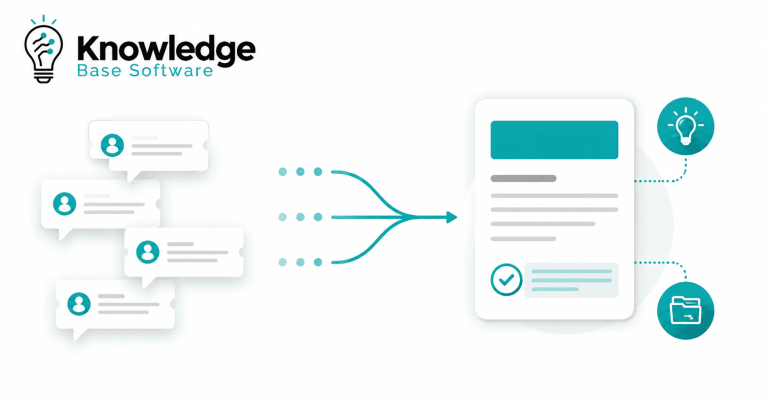
A knowledge base should be built around real questions, not assumptions. Start by collecting the questions your customers or employees already ask.
Research sources include:
- Support tickets
- Live chat conversations
- Sales calls
- Customer success notes
- Onboarding calls
- Product feedback
- Internal Slack or Teams messages
- Community forums
- Existing saved replies
- Search logs
- No-result searches
- Training documents
- Product release notes
Mini checklist:
- Export or review the most common support tickets.
- Identify repeated questions from chat and email.
- Ask support agents what they explain every day.
- Review onboarding calls for confusion points.
- Collect customer phrases, not just internal terminology.
- Look for questions that cause delays, cancellations, or frustration.
- Record no-result searches if you already have a help center.
- Group similar questions into themes.
This step helps you write articles people will actually search for. It also helps you avoid creating knowledge base content that looks complete internally but does not match user needs.
3. Audit existing content and identify gaps
Most companies already have useful information somewhere. The problem is that it is scattered, outdated, duplicated, or hard to find.
Audit:
- Existing help articles
- PDFs
- SOPs
- Training materials
- Internal notes
- Saved replies
- Product documentation
- Onboarding guides
- Policy documents
- Email templates
- Recorded webinars
- Troubleshooting checklists
- Old blog posts
- Internal conversations with reusable answers
Sort content into four groups:
| Content Status | What It Means | Action |
|---|---|---|
| Ready to use | Accurate, clear, and still relevant | Move into the knowledge base and format consistently |
| Needs updating | Useful but outdated or incomplete | Assign an owner and revise before publishing |
| Duplicate | Same answer appears in multiple places | Merge into one canonical article |
| Missing | Users ask, but no answer exists | Add to the writing backlog |
This audit prevents wasted effort. It also helps you find high-value content that can be improved quickly.
4. Choose the right knowledge base software
The right knowledge base software depends on your audience, workflow, budget, integrations, and content volume. Avoid choosing software only because it looks attractive. Choose the system that supports how your team will publish, search, govern, and improve content.
| Evaluation Criteria | Why It Matters | Questions to Ask |
|---|---|---|
| Search quality | Users rely on search when navigation fails | Does search handle synonyms, typos, and common phrases? |
| Categories and tagging | Helps users browse and helps teams organize content | Can you create flexible categories, tags, and collections? |
| Article editor | Affects writing speed and consistency | Is the editor easy for non-technical writers? |
| Templates | Keeps articles consistent | Can you create reusable article templates? |
| Permissions/access control | Important for internal or restricted content | Can you control access by role, team, or customer type? |
| Version history | Helps with governance and accountability | Can you restore older versions and track changes? |
| Analytics | Shows what works and what needs improvement | Can you see views, searches, ratings, and failed searches? |
| AI features | Useful for search, summaries, and agent assist | Can AI use approved content with human oversight? |
| Integrations | Connects the knowledge base to support workflows | Does it integrate with helpdesk, chat, CRM, and product tools? |
| SEO controls | Important for public help content | Can you edit title tags, meta descriptions, URLs, and index settings? |
| Custom domain | Improves trust and brand consistency | Can you use a branded domain or subdomain? |
| Mobile experience | Many users search from mobile devices | Are articles easy to read on small screens? |
| Feedback options | Helps improve articles | Can users rate articles or report issues? |
| Scalability | Prevents future migration problems | Can it handle more articles, teams, and languages? |
| Security | Critical for private documentation | Does it support SSO, audit logs, and secure permissions? |
You do not need the most expensive platform to create knowledge base content that works. You need software that supports your content strategy, not software that replaces it.
5. Design the knowledge base structure
A good knowledge base structure helps users find answers by search and browsing. Do not organize everything around your internal departments unless your users think that way.
Common organization models include:
- By user task: “Set up your account,” “Manage billing,” “Invite team members”
- By product area: “Dashboard,” “Reports,” “Integrations,” “Admin settings”
- By journey stage: “Getting started,” “Advanced setup,” “Troubleshooting”
- By department: “HR,” “Finance,” “IT,” “Operations”
- By role: “Admins,” “Agents,” “Managers,” “Developers”
Aim to keep important answers within two or three clicks. Use clear category names, avoid vague labels, and make search prominent.
Example structures:
| Knowledge Base Type | Example Top-Level Categories |
|---|---|
| SaaS product knowledge base | Getting Started, Account Settings, Billing, Integrations, Reports, Troubleshooting, Admin Controls |
| Ecommerce knowledge base | Orders, Shipping, Returns, Payments, Product Care, Account Help, Promotions |
| Internal company knowledge base | HR, IT, Finance, Operations, Sales Process, Company Policies, Onboarding |
| IT knowledge base | Passwords, Devices, Software Access, Network Issues, Security, Troubleshooting, Requests |
Use tags for secondary classification, but do not rely on tags to fix a poor category structure. Categories should make sense before tags are added.
6. Create article templates and writing guidelines
Templates make knowledge base articles consistent. They also help writers include the information users need without reinventing the format every time.
To put that structure into practice, use the free Knowledge Base Article Generator to turn verified notes into an Article, FAQ, SOP, or How-to draft with visible review checks.
A practical article template:
| Section | Purpose |
|---|---|
| Title | Describes the exact task or problem |
| Summary | Gives a quick answer or overview |
| Who this is for | Clarifies the audience |
| Prerequisites | Lists what the user needs before starting |
| Steps | Explains the process in order |
| Screenshots/video | Shows key actions visually |
| Expected result | Tells users what should happen |
| Troubleshooting | Covers common problems |
| Related articles | Links to next useful resources |
| Last updated date | Builds trust and supports maintenance |
| Owner/reviewer | Makes accountability clear |
Writing guidelines:
- Use plain language.
- Write short paragraphs.
- Use action-oriented headings.
- Use the words users use.
- Keep terminology consistent.
- Put the answer near the top.
- Break long instructions into numbered steps.
- Use screenshots when they clarify the task.
- Add alt text to meaningful images.
- Avoid unnecessary sales copy inside help articles.
- Link to related articles where helpful.
- Keep one article focused on one main task or question.
A knowledge base should sound helpful, not promotional. Users are usually trying to solve a problem. Respect their time.
7. Write and prioritize high-impact articles
Do not try to write every article at once. Start with the topics that will create the most value.
Prioritize articles that address:
- High-volume support questions
- High-friction product issues
- Onboarding blockers
- Billing or account access problems
- Revenue-impacting confusion
- Repetitive agent explanations
- Topics needed for AI or chatbot answers
- Questions that cause escalations
- Issues affecting new customers
Examples of strong article titles:
- How to reset your password
- How to add a new user
- How to update billing details
- Troubleshooting failed imports
- Setting up your account for the first time
- How to connect your CRM integration
- How to export a monthly report
- What to do if your payment fails
- How to change account permissions
- How to contact support from your dashboard
Good article titles are specific. “Account Help” is too broad. “How to reset your password” is clear and searchable.
When writing, include the answer, the steps, expected outcomes, common mistakes, and related links. For complex topics, add screenshots or short videos.
8. Optimize for search, SEO, and findability
A knowledge base must be easy to find in two places: inside the knowledge base and, for public content, through search engines.
For internal search:
- Use user-friendly article titles.
- Include synonyms and common phrases.
- Add tags carefully.
- Review failed searches.
- Connect related articles.
- Avoid duplicate articles with competing answers.
- Keep archived content out of search results.
For Google SEO:
- Use descriptive page titles.
- Write clear meta descriptions.
- Use readable URLs.
- Add internal links.
- Use headings that match user questions.
- Add image alt text.
- Avoid thin duplicate pages.
- Make public articles indexable when appropriate.
- Keep private/internal articles noindexed or behind authentication.
- Use breadcrumbs to clarify structure.
- Update outdated content.
Structured data can help search engines understand page content, but it should match the visible content and should not be used in a misleading way. Google’s structured data documentation explains that structured data can make pages eligible for rich results, but it does not guarantee that rich results will appear.
9. Publish, promote, and integrate the knowledge base
A knowledge base is only useful if people can find it.
When publishing, decide whether it will live on:
- A subdomain, such as
help.example.com - A subfolder, such as
example.com/help/ - A private internal portal
- A helpdesk or customer support platform
- A product-integrated help center
Then make it visible in the places users already look:
- Website header or footer
- Product dashboard
- Onboarding emails
- Support auto-replies
- Live chat widget
- Customer portal
- Internal team tools
- Agent macros and saved replies
- Product UI tooltips
- Community pages
Add a prominent search bar. Include a contact support fallback. A knowledge base should reduce unnecessary tickets, not trap users when they still need human help.
Train support agents to link to articles in replies. This helps customers and also reveals whether articles are clear enough. If agents avoid linking to an article, the article may need improvement.
10. Measure, maintain, and improve
A knowledge base becomes more valuable when it is measured and maintained. Without ownership, even good documentation becomes outdated.
| Goal | Metric | What It Tells You | Action to Take |
|---|---|---|---|
| Improve self-service | Article views | Which topics users visit most | Update high-traffic articles first |
| Improve search | Search terms | What users are looking for | Add or improve matching articles |
| Fix content gaps | No-result searches | Where users cannot find answers | Create new articles or add synonyms |
| Reduce repetitive tickets | Ticket deflection | Whether users solve issues without contacting support | Improve articles linked to common tickets |
| Improve article quality | Thumbs up/down | Whether users found the answer useful | Review low-rated articles |
| Reduce confusion | Contact rate after article view | Whether users still need help after reading | Add clearer steps or troubleshooting |
| Improve engagement | Time on article | Whether users scan or struggle | Simplify long or confusing articles |
| Improve accuracy | Outdated articles | Which content may no longer be reliable | Assign review and update dates |
| Support internal teams | Internal usage | Which resources employees rely on | Improve critical internal documentation |
| Improve content freshness | Last updated date | Whether articles are maintained | Set review cycles and owners |
Recommended review cadence:
- Review high-traffic articles monthly.
- Audit all core categories quarterly.
- Update articles after product releases.
- Assign each article an owner or reviewer.
- Archive content that is no longer relevant.
- Track failed searches and user feedback regularly.
A knowledge base is not finished when it launches. It should improve as your product, team, and users change.
30-day knowledge base launch plan
Use this 30-day plan to create a practical first version of your knowledge base without trying to document everything at once.
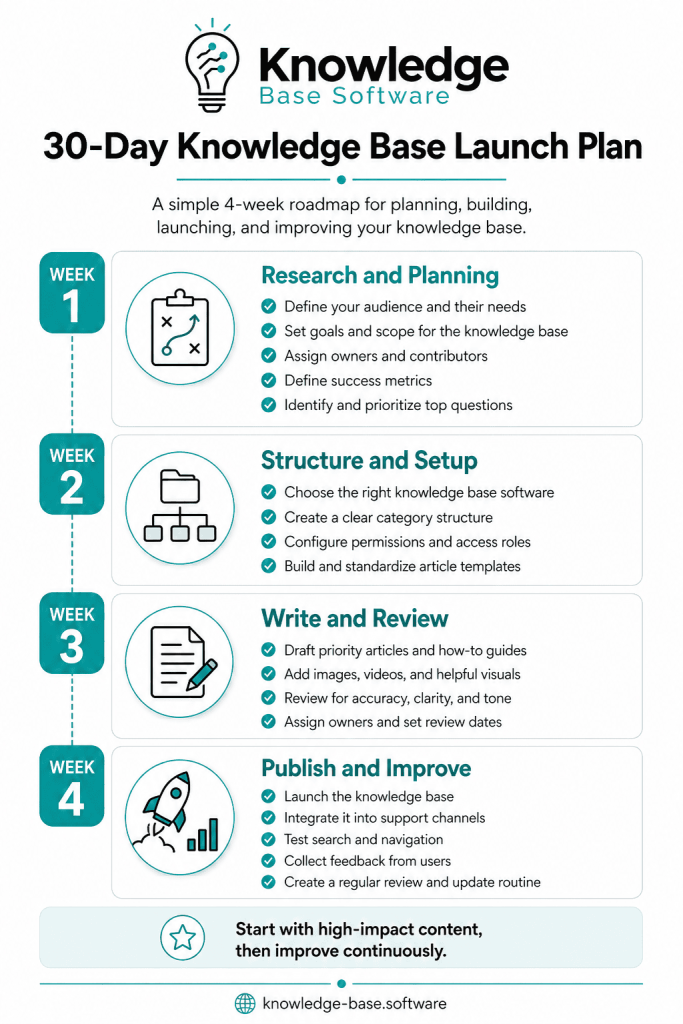
| Week | Focus | Key Actions | Deliverables |
|---|---|---|---|
| Week 1 | Research and planning | Define audience, goals, owners, success metrics, and top questions | Knowledge base brief, content backlog, priority list |
| Week 2 | Structure and software setup | Choose software, create categories, configure permissions, set up templates | Knowledge base structure, article template, publishing workflow |
| Week 3 | Write and review priority articles | Draft high-impact articles, add screenshots, review for accuracy | First batch of approved articles |
| Week 4 | Publish, integrate, and measure | Launch, link from key channels, train support agents, enable analytics | Live knowledge base, feedback process, review schedule |
Week 1 checklist: research and planning
- Define the primary audience.
- Choose internal, external, or hybrid access.
- Identify top support questions.
- Review ticket and chat history.
- Create a content backlog.
- Assign a knowledge base owner.
- Define success metrics.
Week 2 checklist: structure and setup
- Select knowledge base software.
- Create top-level categories.
- Build article templates.
- Configure permissions.
- Set up custom branding.
- Enable analytics.
- Create review workflow.
Week 3 checklist: writing and review
- Write the top 10–20 priority articles.
- Add screenshots or videos where needed.
- Review for accuracy.
- Check terminology consistency.
- Add related article links.
- Assign owners.
- Confirm last updated dates.
Week 4 checklist: launch and improve
- Publish the knowledge base.
- Add links from your website or app.
- Train support agents to use it.
- Add help center links to support replies.
- Test search results.
- Review early feedback.
- Create a monthly improvement routine.
Knowledge base best practices
Follow these best practices when you create a knowledge base:
- Start with real user questions. Build content around what people actually ask.
- Keep answers task-oriented. Each article should help users complete a specific task or solve a specific problem.
- Use consistent templates. Templates make articles easier to write, scan, and maintain.
- Make search excellent. Review search terms, synonyms, and failed searches.
- Design for scanning. Use short paragraphs, clear headings, lists, and tables.
- Include visuals when useful. Screenshots and videos can clarify complex steps.
- Create clear ownership. Every article should have an owner or reviewer.
- Add feedback loops. Let users rate articles or report unclear content.
- Keep human support accessible. Self-service should help users, not block them.
- Review and update content regularly. Outdated answers damage trust.
- Use AI carefully. AI can help draft, search, summarize, and suggest answers, but important content still needs human review.
- Measure business impact. Track whether the knowledge base improves support, onboarding, and internal efficiency.
Common mistakes to avoid
Many knowledge base projects fail because they treat documentation as a content dump instead of a user experience.
Avoid these mistakes:
- Starting with software before strategy. Tools matter, but goals, structure, and ownership matter more.
- Publishing everything without structure. A large messy knowledge base can be harder to use than no knowledge base.
- Writing for internal teams instead of users. Use the words your audience uses.
- Using inconsistent terminology. Do not call the same feature by three different names.
- Ignoring no-result searches. Failed searches are one of the clearest signals of missing content.
- Letting articles become outdated. Old screenshots and inaccurate steps reduce trust.
- Hiding contact support. Some users still need human help.
- Overusing AI without review. AI-generated answers can be useful, but they must be checked for accuracy.
- Treating the knowledge base as a one-time project. It needs ongoing maintenance.
- Keyword stuffing public help content. Search optimization should make content clearer, not harder to read.
Knowledge base article template
Use this template for how-to, troubleshooting, onboarding, and support articles.
# [Article Title: Describe the exact task or problem]

## Summary
Briefly explain what the article helps the user do.

## Who This Is For
Explain which users, roles, plans, or teams this article applies to.

## Before You Start
List any requirements, permissions, settings, files, or tools needed.

## Steps

1. [Step one]
2. [Step two]
3. [Step three]

## Expected Result
Explain what should happen after the user completes the steps.

## Troubleshooting
### Problem: [Common issue]
Solution: [Clear fix]

### Problem: [Another common issue]
Solution: [Clear fix]

## Related Articles
- [Related article 1]
- [Related article 2]
- [Related article 3]

## Article Details
Last updated: [Date]
Owner: [Name/Team]
Reviewer: [Name/Role]
Example knowledge base structure
Below are sample structures you can adapt.
1. SaaS knowledge base
Getting Started
  - Create your account
  - Set up your workspace
  - Invite team members

Account and Billing
  - Update billing details
  - Change your plan
  - Download invoices

Product Features
  - Dashboard
  - Reports
  - Automations
  - Integrations

Admin Settings
  - User roles
  - Permissions
  - Security settings

Troubleshooting
  - Login issues
  - Failed imports
  - Integration errors
2. Ecommerce knowledge base
Orders
  - Track an order
  - Change an order
  - Cancel an order

Shipping
  - Delivery options
  - Shipping times
  - International shipping

Returns and Refunds
  - Start a return
  - Refund timelines
  - Return policy

Payments
  - Accepted payment methods
  - Failed payments
  - Gift cards and discounts

Account Help
  - Reset password
  - Update address
  - Manage preferences
3. Internal HR/company wiki
Company Basics
  - Mission and values
  - Company policies
  - Organization chart

HR and Benefits
  - Time off policy
  - Payroll
  - Benefits enrollment

Onboarding
  - New hire checklist
  - First week plan
  - Required tools

Operations
  - Expense process
  - Vendor requests
  - Internal approvals

Team Playbooks
  - Sales process
  - Support process
  - Product release process
4. IT support knowledge base
Access and Passwords
  - Reset password
  - Set up MFA
  - Request system access

Devices
  - Laptop setup
  - Printer setup
  - Device troubleshooting

Software
  - Install approved apps
  - Request software
  - Fix common app errors

Security
  - Report phishing
  - Data handling rules
  - Security best practices

Network
  - Wi-Fi setup
  - VPN access
  - Connection troubleshooting
Final checklist before you launch
Use this checklist before publishing your knowledge base.
- Goals defined
- Audience defined
- Top questions researched
- Existing content audited
- Categories created
- Search tested
- Priority articles written
- Article templates standardized
- Reviewers assigned
- Contact support visible
- Analytics enabled
- SEO settings checked
- Internal links added
- Feedback enabled
- Permissions configured
- Mobile experience tested
- Maintenance owner assigned
- Review cadence scheduled
FAQs about creating a knowledge base
How do I create a knowledge base from scratch?
Start by defining the audience, goals, and ownership. Then research real user questions, audit existing content, choose knowledge base software, create a clear structure, write article templates, publish priority articles, optimize search, and set a maintenance process.
What should be included in a knowledge base?
A knowledge base should include the information users need to solve problems or complete tasks. This may include FAQs, how-to guides, troubleshooting articles, onboarding resources, product documentation, SOPs, policies, checklists, and related support resources.
What is the best structure for a knowledge base?
The best structure depends on the audience. Customer knowledge bases often work well when organized by tasks, product areas, or journey stages. Internal knowledge bases may be organized by department, workflow, or role. The best structure makes important answers easy to find within a few clicks.
What is the difference between a knowledge base and an FAQ?
An FAQ page answers a limited set of common questions. A knowledge base is broader, searchable, structured, and maintained over time. It can include FAQs, tutorials, troubleshooting guides, product documentation, policies, and internal procedures.
Should a knowledge base be internal or external?
It depends on the audience. Use an external knowledge base for customer self-service and product help. Use an internal knowledge base for employees, support agents, policies, SOPs, and company knowledge. Many companies use both.
What software do I need to create a knowledge base?
You need software that supports search, categories, article editing, permissions, analytics, feedback, integrations, and content governance. Public knowledge bases may also need SEO controls, custom domains, and index management.
How many articles should I start with?
Start with enough articles to answer the most common and high-impact questions. For many teams, that may be 10–30 priority articles. It is better to launch a focused, useful knowledge base than to wait until every possible topic is documented.
How do I keep a knowledge base up to date?
Assign content owners, add last updated dates, review high-traffic articles monthly, audit categories quarterly, update documentation after product changes, and use feedback and search analytics to identify weak or outdated content.
Can AI help create a knowledge base?
Yes. AI can help draft outlines, summarize existing documents, suggest article titles, identify gaps, improve search, and support chatbots. However, important content should be reviewed by humans before publication to ensure accuracy and trust.
How do I measure whether my knowledge base is successful?
Track article views, search terms, no-result searches, feedback ratings, ticket deflection, contact rate after article view, outdated articles, and internal usage. The best metrics connect knowledge base activity to user success, support efficiency, and content quality.
Conclusion
Now you know how to create a knowledge base that is more than a folder of FAQs. Start with clear goals, research real questions, choose the right software, build a simple structure, write useful articles, optimize for search, and maintain the content with ownership and analytics.
A successful knowledge base is useful, searchable, accurate, and actively maintained. Whether you are building a customer help center, an internal knowledge base, or an AI-ready support resource, the goal is the same: help people find trustworthy answers quickly.
Ready to build your first version? Start with your top 20 recurring questions, turn them into clear articles, and improve from there.