Independent knowledge base software guide Evidence-led Updated 2026

Freshdesk Knowledge Base: Setup, Features, and Plan Requirements
Last verified: November 22, 2026.
A Freshdesk knowledge base is a collection of support articles managed in Freshdesk’s Solutions workspace and made available through a customer portal according to their audience settings. It can support customer self-service and give agents reusable answers. Freshdesk documents these capabilities in its knowledge base overview.
The setup matters as much as the writing. A helpful article still fails if customers cannot find it, the wrong audience can open it, or its instructions describe an old product version. Build the knowledge base around customer tasks, verify access before launch, and assign responsibility for keeping each topic current.
This guide covers Freshdesk’s publishing workflow, plan requirements, access controls, search, maintenance, and reporting. Product details were checked against official documentation. Freshdesk and Freshdesk Omni differ in channel capabilities, and older accounts can have different screens or entitlements, so confirm the product and subscription in your account before following a feature-specific path.
Which Freshdesk plan do you need for a knowledge base?
Choose a plan around the publishing work your team must perform. A small public help center, a multilingual operation, and a team that requires formal approval have different requirements. The current paid plans are Growth, Pro, and Enterprise; Freshdesk’s pricing page lists a customer portal and knowledge base in Growth.
| Publishing requirement | Published plan requirement | Decision to make |
|---|---|---|
| Core customer portal and knowledge base | Growth, Pro, or Enterprise | Is a basic support knowledge base enough for your initial rollout? |
| Multilingual content, article templates, versioning, multi-product management, and dedicated KB analytics | Pro or Enterprise | Which of these capabilities is necessary for your operating workflow? |
| Flexible nested hierarchy and article approval workflow | Enterprise | Do you need deeper organization or a formal review gate before publication? |
The advanced requirements above come from Freshdesk’s published knowledge base feature matrix. Dedicated KB reporting is distinct from general helpdesk reporting. Confirm current account eligibility before designing a process around a feature or buying an upgrade.
Is the Freshdesk knowledge base free?
Freshdesk currently offers a Free Program for up to two agents for six months, including a knowledge base. It applies to Freshdesk, not Freshdesk Omni. This is separate from the 14-day product trial; it is not a permanent free tier or a guaranteed automatic destination when a trial ends.
Before using trial features to build your help center, decide which plan you will keep. Record the capabilities you actually need, then check that the intended subscription includes them. That avoids building an approval or translation process your eventual plan cannot support.
Plan categories, folders, and audiences before writing
Freshdesk’s basic structure is category → folder → article. Use categories for broad customer needs, folders for related tasks, and individual articles for answers someone can apply. Start with the questions appearing repeatedly in support conversations, then group them using the language customers use.
Keep your first structure shallow. A customer should be able to predict where a task belongs without knowing your organizational chart. “Billing” is usually a more useful label than the name of the department that handles invoices. Add depth only when it makes a growing collection easier to navigate.
Here is an illustrative planning map for an appointment-booking service. It shows content decisions, not a live Freshdesk account or a tested product workflow.
| Category and folder | Example article | Intended audience |
|---|---|---|
| Appointments → Changes | Reschedule an appointment | Public customers |
| Business accounts → Setup | Prepare your company’s booking rollout | The selected customer companies |
| Support operations → Escalations | Investigate a failed booking confirmation | Support agents |
Set an explicit audience for each collection
Freshdesk’s folder setup documentation includes public, agents-only, logged-in, company, and segment-based audience options. Choose the option that matches the content. Requiring a login is not the same as limiting access to a particular company.
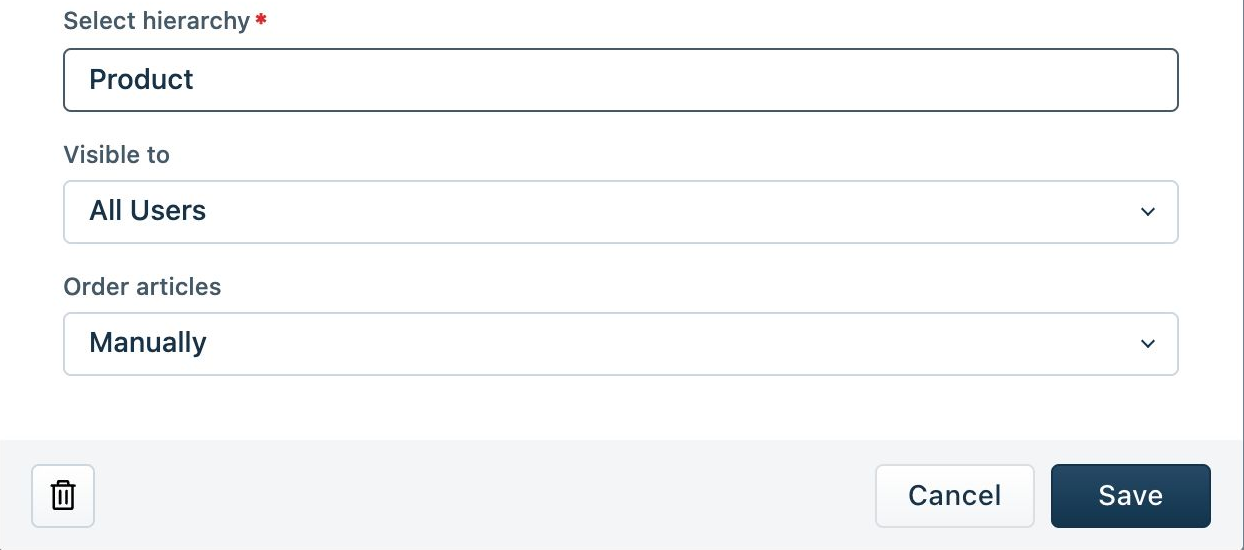
Also inspect any article-level settings available in your workflow. The current management guide documents a Visible To action for selected articles. Record the intended audience in your content plan and test the resulting access from the reader’s perspective.
Keep account-specific case details in the appropriate restricted support record. A reusable article should explain a repeatable task without exposing a customer’s private circumstances. For restricted collections, test both an authorized reader and someone who should not have access.
Create, review, and publish your first articles
Create the category and folder
In Solutions, open the New Article menu and use its category or folder creation option. Name the category, select the relevant portal, create the folder in the intended location, and set its audience. Freshdesk’s creation guide documents these steps.
Create only the folders needed for your first useful collection. Empty sections make navigation look unfinished and encourage authors to fill space rather than solve problems. Establish an article-naming pattern before several people start writing.
Write an answer readers can complete
Choose New Article, add a specific title, and draft the answer. The Freshdesk article editor supports headings, lists, tables, images, videos, and attachments. Use these elements to clarify the task; a short text answer does not need a screenshot for every click.
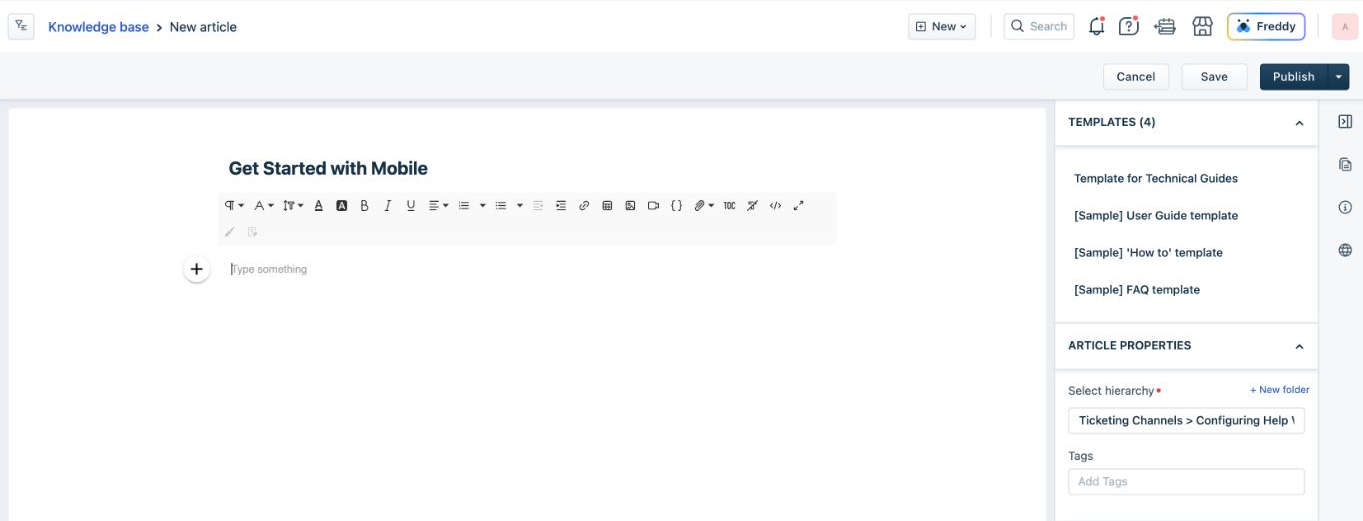
A practical article pattern is:
- State the outcome. Tell readers what they will accomplish and whether the instructions apply to them.
- List prerequisites. Identify the account role, information, or product condition required before starting.
- Give the steps in execution order. Use the labels readers see in the product, with one meaningful action per step.
- Describe success. Explain what should change or which confirmation the reader should see.
- Handle the likely exception. Address the most common blocking condition and provide the appropriate support route.
For example, an article titled “Reschedule an appointment” should explain who can make the change, any applicable restrictions, the actual booking-system steps, and how to confirm the new time. An article titled “Appointment information” leaves the intended task unclear. Verify the business rules instead of inventing a cutoff or cancellation policy.
Write the essential instructions in the article body. Add descriptive alternative text to informative images and use meaningful link labels. For a longer procedure, headings and the editor’s table-of-contents feature, documented from Growth onward, can help readers reach the relevant part without scanning every paragraph.
Review the result before publication
Have a reviewer follow the draft from the starting condition it describes. Ask them to flag missing permissions, unexplained terminology, ambiguous buttons, and steps that assume prior knowledge. Compare screenshots with the current interface and check links using the intended reader’s access.
Complete the review or approval process available on your plan, confirm the article’s destination and audience, and publish. Freshdesk requires at least one published article for a category or folder to appear in the customer portal. Publication does not override audience restrictions. See the portal visibility guidance before treating publication as a successful launch.
Connect the portal to your support workflow
Give customers a consistent way to reach help from your website or product. If you use a branded address such as support.example.com, follow Freshdesk’s custom portal URL and DNS verification instructions. The documentation describes certificate provisioning after DNS verification. Check the resulting HTTPS address and important links before announcing it.
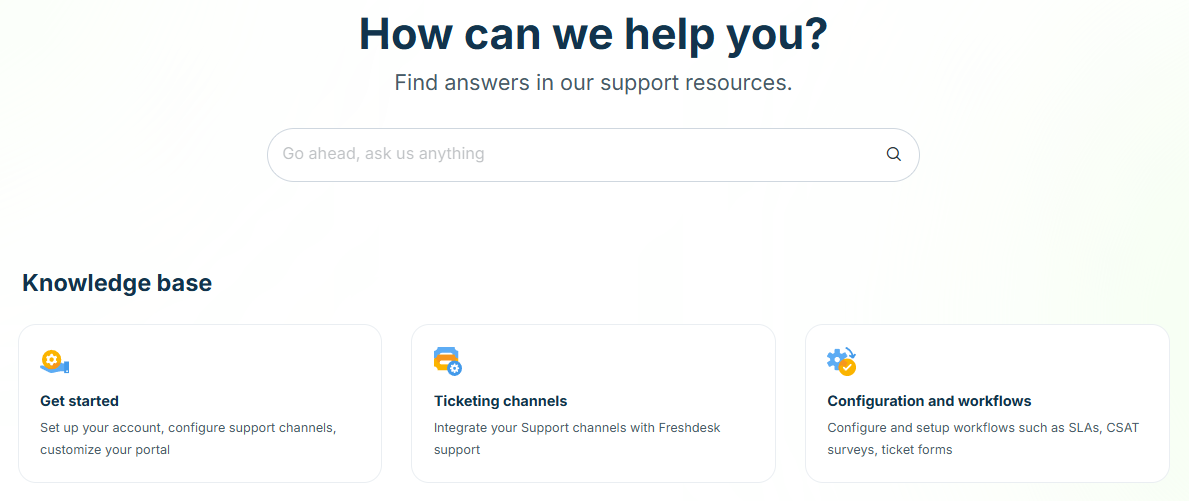
For theme customization, the current portal appearance guide documents Pro and Enterprise access through Admin → Portals → Appearance. Work on a cloned theme and preview it before publishing. Test navigation, text contrast, focus visibility, and small-screen reading whenever you change the design.
Teach agents to search for an existing answer before writing a new one. When a suitable article exists, use its link in the reply and add the case-specific explanation. When the answer needs an update, route the improvement to the content owner so the next reader benefits.
If you use the Freshdesk help widget, test that experience separately. It can expose solution articles and a contact form within a website or product, but Freshdesk documents an attachment limitation in the widget. Do not make a downloadable file the only place a widget reader can find the answer.
Make articles easy to find
Test customer search and agent search separately
Build a small query set from real customer wording: a task, an error message, a common synonym, and the phrase an agent would use internally. Search from the customer portal as well as the agent workspace. Check whether the result is relevant, recognizable, accessible, and still accurate when opened.
Freshdesk’s agent search documentation lists solution titles, descriptions, tags, and attachment names among searchable fields. This does not establish that the customer portal uses identical behavior or that it searches the full text inside attached documents.
Use task-based titles and natural customer terminology in the answer. Add tags where they help your team retrieve and organize articles, but keep the visible content understandable without them. If two articles answer the same question differently, reconcile the guidance instead of adding more keywords to both.
Handle public search visibility accurately
For public articles, complete the relevant title and description fields documented in Freshdesk’s SEO settings guide. Give each article a distinct purpose and a concise description that matches the answer. Keep sensitive content restricted regardless of its potential search demand.
Do not spend time stuffing the meta-keywords field. Google states that meta keywords do not affect indexing or ranking. Google may use a meta description for a search snippet, but it can select other page text. Freshdesk’s internal article tags and Google’s treatment of metadata serve different purposes.
Review public pages for accurate headings, useful cross-links, readable mobile layouts, and an answer that satisfies the query. These are quality checks, not a promise of indexing, a particular ranking, or a fixed increase in traffic.
Test the launch and diagnose missing articles
Run acceptance checks against the published portal. An administrator’s preview cannot prove what a logged-out visitor or a customer from another company can see. Use separate reader sessions appropriate to your access model, and include direct article links as well as navigation.
| Check | What to verify | Action if it fails |
|---|---|---|
| Public article | The intended answer opens in a logged-out session. | Review publication status and audience settings. |
| Restricted article | An authorized reader can open it; an unauthorized reader cannot. | Review company or segment selection and article visibility. |
| Portal and language | The article appears in the intended portal and language. | Check the selected portal, translation, and language visibility. |
| Discovery | Customer queries and category navigation lead to the right answer. | Improve naming, placement, or the content covering that task. |
| Reading and completion | Steps, images, links, and the next support action work on mobile. | Repair the broken element and repeat the task. |
If a published article seems missing, first confirm which portal and language you are viewing. Next check the article’s status, its folder and article audience, and whether that reader belongs to the permitted company or segment. Freshdesk’s management views are affected by the chosen portal and language.
Then separate a visibility problem from a search problem: can the intended reader open the direct URL? If the page opens but the search query misses it, investigate discovery without loosening access controls. Record the failing query, reader type, language, and URL so an administrator can reproduce the issue.
Keep articles and translations current
Give each topic an owner and a review trigger
Assign someone to maintain each topic, even when several agents contribute. Review content when the product, policy, or support procedure changes; when feedback identifies a failure; or when recurring tickets reveal that an answer is incomplete. A calendar review can supplement those triggers.
Make the maintenance record useful: note the affected article, the reason for the change, its owner, and how the updated instructions were checked. If you consolidate overlapping articles, review links that pointed to them. Do not delete useful entry points without deciding where their readers should go.
Where your plan provides versioning and approvals, decide who may revise, review, and publish. A workflow that waits indefinitely for approval can leave known errors live, so define an escalation path for urgent corrections alongside normal review responsibilities.
Update translated articles deliberately
Freshdesk’s multilingual setup guide separates the primary-language article from its translations and allows supported languages to remain hidden while unfinished. Choose the primary language carefully and plan review capacity before launching several languages. Enabling languages does not establish an automatic translation process.
After changing the primary article, open its Languages area and select Mark other translations as outdated. Update each affected translation and mark it current when reviewed. Freshdesk explicitly documents this action as part of multilingual article maintenance; do not assume a source edit automatically refreshes translated guidance.
Check localized screenshots, product labels, links, and policy details along with the prose. A translation can read naturally while still sending readers to an outdated screen or to a support route that is unavailable in their region.
Measure usefulness with knowledge base reports
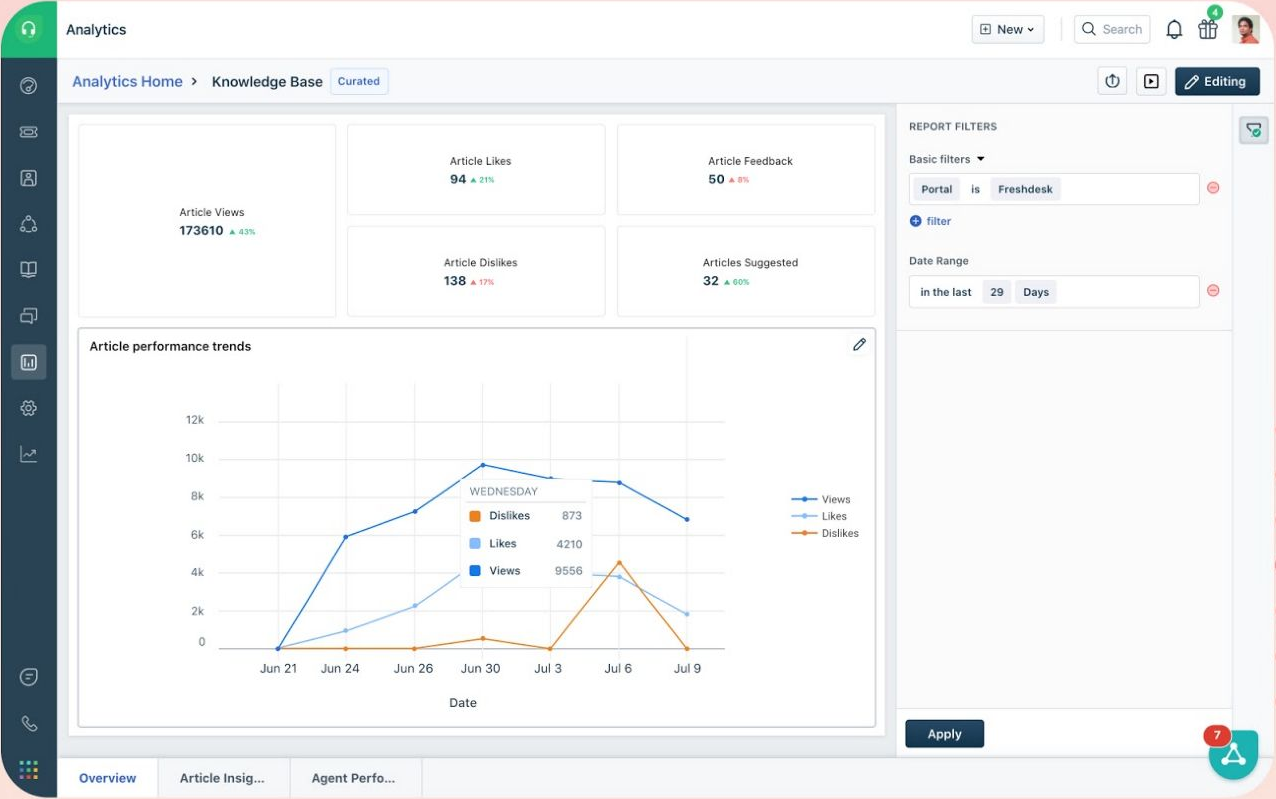
On eligible plans, Freshdesk’s curated knowledge base reports provide Overview, Article insights, and Agent performance views. Use the reports to identify articles worth investigating, then inspect the content and the support context behind the numbers.
| Signal | What it represents | Useful follow-up |
|---|---|---|
| Article views | Pageviews of an article in the help center. | Check whether a frequently viewed answer still matches the current task. |
| Likes and dislikes | Reader votes on the article. | Review negative feedback for missing steps, outdated instructions, or an audience mismatch. |
| Article feedback tickets | Tickets created through article feedback. | Read the reported problem and assign a correction. |
| Article suggested | Article links inserted into ticket replies. | Check whether agents can reuse a complete answer or still need a long explanation. |
These metric meanings follow Freshdesk’s article reporting definitions. The suggested follow-up actions are an editorial review process, not automatic conclusions produced by the dashboard.
Article views do not equal tickets prevented. A view can precede a successful task, an abandoned attempt, or a new support request. Likewise, a suggested article proves that a link was inserted, not that the customer’s problem was resolved.
If ticket reduction is a goal, define what counts as a resolved task and how you will observe it. Compare recurring questions alongside content changes, product changes, and support volume. Use a small set of customer task checks to investigate whether the answer works, rather than turning a pageview total into an unsupported deflection rate.
Use Freddy AI to assist drafting, with human review
A standard knowledge base does not require an AI add-on. Freshdesk documents its Solution Article Generator for Pro and Enterprise with the Freddy AI Copilot add-on. It can help produce a draft, but the documented workflow includes reviewing and refining that draft before publication.
Have a product expert verify the instructions, prerequisites, names, and exceptions. Remove customer-specific details and unsupported claims. A fluent answer can still describe a nonexistent setting or omit a permission requirement. Test the task itself before approving the text.
Keep agent assistance separate from customer-facing automation. Freshdesk’s product comparison distinguishes Copilot from AI Agent capabilities and their channel availability. Check the exact product, license, and usage requirements before planning an automated support experience around your articles.
Export content and decide whether Freshdesk fits your workflow
Distinguish a content inventory from a full export
The article-list Export function produces a CSV of selected article properties; it does not include full article bodies. Freshdesk’s knowledge base management guide directs full-content exports to the helpdesk export and its Solutions XML.
The official helpdesk export instructions require Account Administrator access and describe exporting through the account administration area. Use the CSV for an inventory and the documented full export for a content-migration investigation.
Before a migration, inspect representative articles for body formatting, images, attachments, internal links, translations, and intended audiences. Compare what the source export contains with what the destination can import. Keep a URL mapping for important customer entry points and test a small collection before moving the entire knowledge base. An export file alone does not prove a lossless migration.
Evaluate the support workflow you actually need
Freshdesk is worth evaluating when support agents will maintain answers as part of customer service and readers need a help center connected to that workflow. Its value depends on whether your team can organize, review, find, and reuse content consistently. Make those tasks part of your evaluation.
Evaluate a separate documentation platform if your requirements center on source-controlled authoring, specialized API-reference publishing, or a documentation release process independent of the helpdesk. Treat these as requirements to demonstrate in a trial, rather than assuming a product can or cannot meet them from a feature label.
Start with a small collection covering recurring customer tasks. Choose the required plan, establish audiences and ownership, publish the answers, and run the launch checks. Expand after readers can find the right article, complete the task, and reach support when the documented path does not solve their problem.