Independent knowledge base software guide Evidence-led Updated 2026

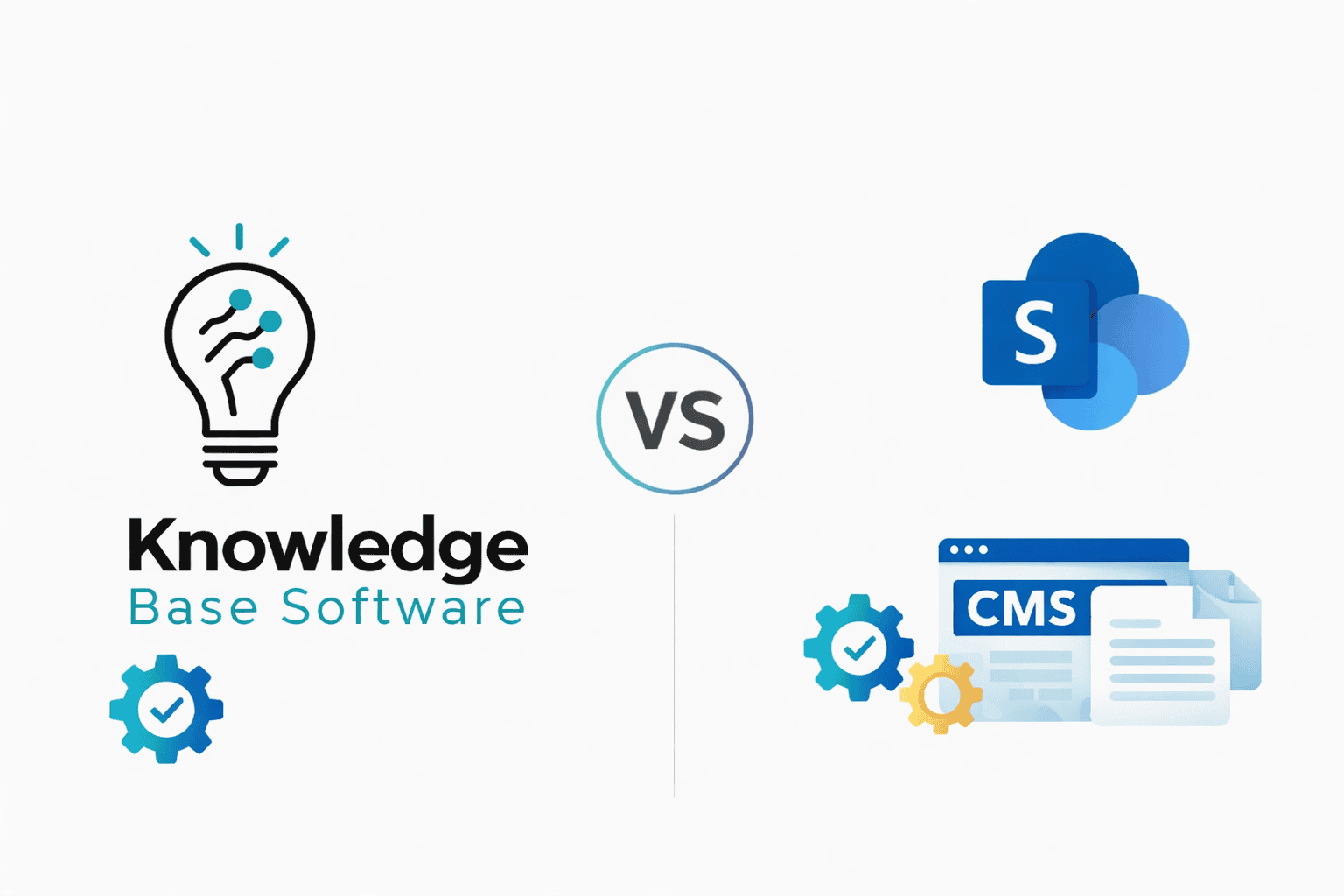
SharePoint Knowledge Base vs Dedicated Knowledge Base Software
Last verified: July 21, 2026
Quick answer: SharePoint can support a capable internal knowledge base, especially when an organization already uses Microsoft 365 and needs document collaboration, identity-based access, version history, metadata, and search in the same environment. It is not a turnkey knowledge base, however. A team must design the site structure, article model, navigation, permissions, search experience, publishing workflow, and governance. Dedicated knowledge base software is usually the clearer fit for a public help center or for a team that wants knowledge-specific publishing, feedback, and reporting without a substantial SharePoint implementation project.
This review compares SharePoint Online with purpose-built knowledge base software. It focuses on four points that are often described incorrectly: external guest licensing, search indexing, the 5,000-item List View Threshold, and SharePoint’s information-architecture capabilities.
SharePoint knowledge base verdict
- Choose SharePoint when the knowledge base is primarily for employees, Microsoft 365 is already deployed, Office files are part of the knowledge set, and your organization can provide SharePoint ownership and governance.
- Choose dedicated knowledge base software when the main goal is a polished public help center, customer self-service, fast implementation, knowledge-specific analytics, article feedback, or simple management by support and documentation teams.
- Use both when SharePoint should remain the controlled internal source for employees while approved customer documentation is published through a dedicated public knowledge base.
| Decision area | SharePoint Online | Dedicated knowledge base software |
|---|---|---|
| Primary design | Collaboration, intranets, sites, documents, lists, and organizational content | Creating, governing, finding, and publishing answers and documentation |
| Internal access | Strong fit for Microsoft 365 identities, groups, and controlled collaboration | Usually supports private readers, SSO, and roles; depth varies by product and plan |
| Public help center | Not a turnkey anonymous customer-documentation experience | Usually a core use case with public URLs, themes, and article navigation |
| Information architecture | Sites, hubs, navigation, libraries, content types, site columns, and managed metadata; requires design | Categories, collections, sections, article templates, and related content are commonly preconfigured |
| Search | Indexes supported site, page, document, library, and metadata content, subject to permissions and documented limits | Usually scoped to approved knowledge articles and optimized for answer discovery |
| Collaboration | Deep Microsoft 365 document collaboration and versioning | Usually focuses on drafting, review, approval, and publishing |
| Implementation effort | Can require architecture, administration, configuration, and governance | Typically quicker to launch as a conventional help center |
| Best fit | Microsoft-centered internal knowledge and document-heavy intranets | Customer self-service, product documentation, and focused internal answer hubs |
Can SharePoint be used as a knowledge base?
Yes. A SharePoint knowledge base can combine modern pages, document libraries, lists, site and hub navigation, permissions, search, version history, and Microsoft 365 collaboration. Teams commonly use that combination for policies, procedures, IT instructions, HR resources, project records, and departmental documentation.
The important distinction is between capability and readiness. SharePoint provides components from which a knowledge system can be built. It does not automatically create a clean article taxonomy, a documentation workflow, useful content ownership, a reader feedback loop, or a customer-facing help center. Those outcomes depend on implementation choices.
A dedicated platform starts closer to the finished experience: categories, article templates, a help-center theme, knowledge search, and publishing roles are usually part of the product model. SharePoint starts as a broader content and collaboration platform. That flexibility is valuable, but it makes governance part of the project rather than an optional refinement.
Four SharePoint facts that change the comparison
1. External guests do not all require a paid host-organization license
It is inaccurate to calculate SharePoint cost by assuming that every external collaborator must receive a paid license from the host organization. Microsoft’s external sharing documentation explains that guests without a license in the host organization can perform basic collaboration. Depending on the permissions granted, this can include viewing and editing documents in Office for the web and working with site content, lists, list items, and files.
That does not make guest access unlimited. Microsoft says a guest needs an appropriate license for capabilities such as receiving OneDrive storage or creating a Power Automate flow. External sharing must also be allowed at both organization and site levels, and the more restrictive setting applies. Site-level guest access normally involves identity verification and permissions; it is not the same product experience as an open, anonymous help center.
The practical cost model therefore has at least three groups: licensed internal users, unlicensed guests doing permitted basic collaboration, and external users who need capabilities that trigger separate licensing or services. Confirm the intended activities—not just the headcount—against Microsoft’s licensing terms before budgeting.
2. SharePoint can index Word, PDF, pages, and other supported content
It is also inaccurate to state that complete Word files, PDFs, or pages are generally not indexed. Microsoft says that most content in a site, list, library, Web Part page, or column is crawled and added to the search index by default. Its technical reference lists the file types SharePoint can crawl and parse, including common Office and PDF formats.
Searchability is conditional rather than universal. Microsoft’s guide to making SharePoint content searchable identifies several controls:
- Search results are security trimmed, so a person only sees content they are permitted to access.
- A site owner can exclude a site, list, library, ASPX/Web Part page content under the applicable site settings, or selected columns from search.
- New or changed content must be crawled before the index reflects it.
- Unsupported, password-protected, encrypted, oversized, or partially processed files may have incomplete or metadata-only indexing.
Microsoft’s SharePoint search limits specify a 150 MB crawl-processing threshold for general file types and an extended 512 MB threshold for PDF, PPT, PPTX, DOC, and DOCX. Files above the applicable threshold can have metadata downloaded while their full content remains unavailable to search. These are indexing limits, not the same as file-storage limits.
Indexing is only one part of findability. A technically indexed document can still be difficult to find when titles are vague, metadata is inconsistent, permissions fragment the audience, or results mix operational files with approved answers. A SharePoint knowledge base needs search governance as well as search availability.
3. The 5,000-item figure is a view and query threshold—not a storage limit
SharePoint’s 5,000-item number is frequently misunderstood. Microsoft describes it as the List View Threshold: a control intended to prevent resource-intensive database operations from processing too many rows at once. A list view or query that attempts to process more than approximately 5,000 items can encounter a threshold error.
It is not a claim that a list or library can store only 5,000 items. Microsoft’s SharePoint Online limits documentation states that a list can contain up to 30 million items and a library can contain up to 30 million files and folders. Large repositories still require deliberate design. Indexed columns, filtered views, folders, metadata navigation, and well-scoped queries can keep operations within supported patterns.
For a knowledge base, the operational lesson is more useful than the headline number: do not create an unfiltered view that tries to retrieve the entire repository. Design views around audience, content type, department, product, status, and review date. Test those views with realistic volumes before migration.
4. SharePoint has hierarchy and categorization tools
SharePoint is not limited to folders or a flat collection of pages. It supports several information-architecture mechanisms:
- Managed metadata: centrally maintained term sets can provide consistent labels, including hierarchical terms. See Microsoft’s introduction to managed metadata.
- Content types: reusable definitions can combine templates and metadata so different content classes follow consistent rules.
- Site columns: reusable fields can standardize attributes such as department, product, owner, review date, region, or content status across lists and libraries.
- Navigation: SharePoint supports global, hub, and local navigation, with links and sublinks that can guide readers between sites, pages, and resources. See Microsoft’s navigation documentation.
- Sites, hubs, libraries, folders, and pages: these provide structural layers for separating ownership, audiences, and content domains.
The fair criticism is not that SharePoint lacks hierarchy or categorization. It is that these capabilities do not arrive as a finished knowledge base taxonomy. Someone must decide which tool represents each layer, prevent duplicate structures, maintain term sets, and keep navigation aligned with the content model.
Where SharePoint is stronger
Microsoft 365 collaboration
SharePoint is compelling when knowledge is created through Office documents and Microsoft 365 workflows. Teams can coauthor files, retain versions, manage access, and surface material through sites and Teams-connected work. A separate knowledge platform may still be better for final answer delivery, but SharePoint can reduce movement between the tools employees already use to create source material.
Controlled internal knowledge
For employee knowledge, SharePoint can use established identities, groups, and permissions rather than introducing a separate user directory. This is valuable for departmental resources, restricted procedures, and content that should follow the organization’s Microsoft 365 access model. It also makes SharePoint a natural candidate for the scenarios covered in our internal knowledge base software guide.
Documents and structured records together
A SharePoint implementation can combine narrative pages, document libraries, lists, metadata, and navigation. That breadth works well when the repository must contain both reader-friendly guidance and controlled files such as forms, templates, policies, or project records.
Where dedicated knowledge base software is stronger
A focused reader experience
A dedicated knowledge base normally centers the experience on one task: finding an approved answer. The default interface is more likely to provide article categories, related articles, a prominent scoped search, breadcrumbs, and help-center navigation without a custom SharePoint build.
Public and customer-facing publishing
SharePoint guest sharing is useful for controlled collaboration with partners and clients, but a guest portal is not equivalent to a public help center. Dedicated platforms commonly publish indexable documentation to anonymous readers, manage a branded domain, and separate public, customer-only, and internal content within a documentation-oriented model.
Knowledge-specific operations
Purpose-built products commonly emphasize article ownership, verification, approval, article feedback, failed-search analysis, content health, and integrations with support tickets or product experiences. Exact availability varies by vendor and plan, so these capabilities should be tested rather than assumed. The advantage is that the product is organized around knowledge operations instead of requiring a general content platform to be configured for them.
SharePoint licensing and total cost
Do not compare SharePoint and knowledge base software by multiplying one public price by every possible reader. SharePoint is included in several Microsoft 365 business and enterprise subscriptions, and Microsoft also sells or lists SharePoint offerings by market. Prices, purchase options, taxes, contract terms, and included services vary by country and billing arrangement. Use Microsoft’s SharePoint plans and pricing page and a written quote for the tenant that will be deployed.
A credible total-cost model should include:
- licenses for internal users who require SharePoint or qualifying Microsoft 365 access;
- the permitted role of unlicensed external guests and any advanced external-user needs;
- information architecture, migration, metadata, permission, and search design;
- SharePoint administration and content governance time;
- custom components, integrations, or third-party products, if required;
- ongoing content review, ownership, training, and support.
Existing Microsoft 365 licensing can make SharePoint economically attractive, but a license already owned is not the same as a knowledge base already implemented. Dedicated software adds a separate subscription but may reduce configuration and operational effort. Compare a three-year operating model rather than subscription prices alone.
How to build a useful SharePoint knowledge base
If SharePoint fits the audience and operating model, use the following framework. It is intentionally focused on knowledge outcomes rather than visual customization.
1. Define the audience and boundary
Decide whether the site serves all employees, one department, authenticated partners, or a mixed audience. Document what is excluded. A single site should not casually mix public-ready instructions, internal operational notes, and restricted records.
2. Separate articles from source files
Identify which information should be a readable SharePoint page and which must remain a Word, PDF, spreadsheet, template, or controlled record. A document can be indexed, but a search hit that opens a 70-page policy is not always the fastest answer. Consider a concise page that explains the task and links to the governed source document.
3. Design the content model
Create a small set of content types and reusable fields. Useful knowledge metadata can include topic, department, audience, product, owner, status, effective date, review date, and sensitivity. Avoid requiring fields that authors cannot apply consistently.
4. Build taxonomy and navigation together
Use managed terms for consistent classification and navigation for the reader’s main journeys. They should complement one another rather than reproduce two competing hierarchies. Test labels with employees who were not involved in the design.
5. Design permissions before migration
Map owners, authors, reviewers, readers, and guests. Prefer group-based access and minimize scattered item-level exceptions. Confirm how security trimming affects search results. For a broader control checklist, see our guide to knowledge base security and compliance.
6. Configure and test search
Verify that sites and libraries are allowed in the index, supported file content is searchable, metadata is populated, and representative users see only authorized results. Test real questions—not only exact document titles—and record searches that return nothing or the wrong content.
7. Plan for scale before reaching it
Use indexed columns and filtered views from the beginning. Model realistic library sizes and common queries. The goal is not merely to stay under 5,000 total items; it is to keep resource-intensive views and operations within supported query patterns as the repository grows.
8. Establish an article lifecycle
Assign each knowledge item an owner and review rule. Define draft, review, approval, publication, revision, and retirement steps. A technically searchable repository still fails if readers cannot tell which answer is authoritative. Our knowledge base implementation checklist covers the wider rollout process.
Best use cases for each approach
| Scenario | Likely fit | Reason |
|---|---|---|
| Employee policies and procedures in a Microsoft 365 organization | SharePoint | Identity, Office content, sites, permissions, and collaboration are already connected |
| IT runbooks containing pages, controlled files, and departmental access | SharePoint or hybrid | SharePoint manages internal source material; a service platform may deliver agent-facing answers |
| Public SaaS product help center | Dedicated knowledge base | Anonymous access, documentation navigation, branded publishing, and self-service are central requirements |
| Authenticated partner resource center | Evaluate SharePoint | Guest collaboration can work without licensing every basic guest, but identity, permissions, and advanced capability needs must be validated |
| Support team publishing answers from ticket patterns | Dedicated support knowledge base | Ticket-to-knowledge workflows and support analytics are usually more central |
| Internal source plus external approved documentation | Hybrid | Separates controlled collaboration from public delivery while preserving clear publishing responsibility |
SharePoint knowledge base pros and cons
Advantages
- Strong alignment with Microsoft 365 identities and collaboration
- Pages, files, lists, metadata, and navigation in one platform
- Security-trimmed search across permitted indexed content
- Managed metadata, content types, and site columns for consistent organization
- Basic external guest collaboration does not automatically require a host-organization license for every guest
- Attractive for organizations that already operate and govern SharePoint
Trade-offs
- Not a prebuilt public help center
- Requires information architecture and governance decisions
- Search quality depends on content, metadata, permissions, indexing, and query design
- Large lists and libraries require indexed, filtered views and query planning
- External guest collaboration is more controlled and identity-oriented than open customer self-service
- Customizations and third-party components can increase operating complexity
Alternatives to SharePoint for knowledge management
The relevant alternative depends on why SharePoint is being considered:
- Confluence: consider it when collaborative pages, team spaces, and the Atlassian ecosystem matter more than Microsoft document management. Read our Confluence comparison.
- Document360: consider it for structured public, private, or mixed documentation managed through a purpose-built knowledge platform. Feature availability and commercial terms should be confirmed in a quote. Read our Document360 comparison.
- Zendesk Knowledge: consider it when the knowledge base must sit inside customer-service workflows and the Zendesk agent environment. Read our Zendesk review.
- A hybrid architecture: retain SharePoint for internal source documents and collaboration, then publish approved customer content to a dedicated platform. Define which system is authoritative for each content class to avoid duplicate, conflicting answers.
Decision checklist
- Is the primary audience internal, authenticated external, or anonymous public?
- Are Microsoft 365 licenses already assigned to the employees who need access?
- What exact tasks must external guests perform, and do any require added licenses?
- Will readers consume concise pages, source documents, or both?
- Who will own term sets, content types, navigation, permissions, and search?
- How will authors draft, review, approve, update, and retire content?
- How will the team identify missing answers, poor searches, and outdated pages?
- Does the three-year cost include implementation and governance—not only licenses?
If the organization has clear answers and strong SharePoint ownership, SharePoint can be a credible internal knowledge base. If the project needs a public documentation experience or a support team must launch and govern articles with minimal platform administration, dedicated knowledge base software is usually the more direct route.
Frequently asked questions
Is SharePoint a knowledge base?
SharePoint is a broad collaboration and content platform that can be configured as an internal knowledge base. It provides pages, libraries, lists, permissions, search, metadata, content types, and navigation, but the organization must assemble and govern those capabilities as a knowledge system.
Does every external SharePoint user need a paid license?
No. Microsoft documents basic collaboration tasks that unlicensed guests can perform in the host organization, subject to sharing settings and granted permissions. Guests who need advanced capabilities such as their own OneDrive storage or the ability to create a Power Automate flow require an appropriate license.
Does SharePoint index Word documents and PDFs?
SharePoint can crawl and parse supported Word and PDF files and index supported page and site content. Search results remain subject to permissions, search exclusions, crawl timing, supported formats, encryption or password protection, processing limits, and file size thresholds.
Is SharePoint limited to 5,000 documents?
No. The 5,000 figure is the List View Threshold for resource-intensive views and database operations, not the repository storage limit. Microsoft documents up to 30 million items in a list and up to 30 million files and folders in a library. Large repositories need indexed columns, filters, folders, metadata, and carefully designed queries.
Can SharePoint organize articles into categories and hierarchies?
Yes. Managed metadata and hierarchical term sets, content types, site columns, navigation, sites, hubs, libraries, folders, and pages can all contribute to organization. The limitation is not an absence of structure; it is the need to design, configure, and govern that structure.
Is SharePoint suitable for a public customer knowledge base?
It is generally not the simplest option. SharePoint Online external sharing is designed around tenant settings, permissions, authenticated guests, and item-sharing links. A dedicated knowledge base is usually better aligned with anonymous, indexable, branded customer documentation.
Is SharePoint better than Confluence for a knowledge base?
Neither is universally better. SharePoint is often more attractive for organizations centered on Microsoft 365, Office files, and Microsoft identity. Confluence is often more attractive for collaborative pages and teams centered on Jira and the Atlassian ecosystem. Both require more knowledge-base design than a purpose-built public documentation platform.
Should we choose SharePoint only because it is already included?
No. Existing licensing is a legitimate advantage, but the decision should also include audience experience, implementation, governance, search, publishing workflow, administration, and long-term maintenance. A lower incremental license cost can still produce a higher operating cost if the platform requires extensive configuration for the intended use.
Sources and review method
This comparison was checked against Microsoft’s public documentation for external sharing and guest capabilities, search settings and security trimming, search processing limits, the List View Threshold, SharePoint Online service limits, managed metadata, content types, site columns, and SharePoint navigation.
Independence disclosure: Knowledge-Base.Software is an independent educational and comparison site. It is not Microsoft, does not represent Microsoft, and was not paid by Microsoft for this review. This article does not claim a hands-on benchmark or an authenticated tenant test. Plan availability, licensing rights, and service behavior can vary by agreement, tenant configuration, region, and Microsoft service changes; verify commercial and technical requirements with Microsoft before purchase or migration.