Independent knowledge base software guide Evidence-led Updated 2026

SharePoint Knowledge Base: Setup, Permissions, and Maintenance
A SharePoint knowledge base turns company information into guidance employees can find and use. You can build one with modern SharePoint pages, or use Microsoft’s named SharePoint Knowledge Base capability, currently documented as a Frontier preview. The two approaches have different editing and publishing controls, so choose your route before following setup instructions.
This guide covers SharePoint in Microsoft 365. It provides a modern-page workflow that does not depend on the Knowledge Base preview, followed by the native creation route for eligible organizations. Microsoft’s Knowledge Base overview explains the preview’s availability and requirements.
Choose the right SharePoint knowledge base approach
Start with your publishing requirements and the features available in your organization. Do not assume that a tutorial about Site Pages describes the newer Knowledge Base experience.
| Approach | When to consider it | What to verify first |
|---|---|---|
| Modern SharePoint pages | You need a configurable employee help site using page layouts, web parts, metadata, and a publishing workflow. | Site creation, author permissions, reader access, and any approval requirements. |
| Native SharePoint Knowledge Base | The preview is available and you want connected KB pages with visual and Markdown editing. | Preview eligibility, destination-site access, import limitations, and optional AI requirements. |
The modern-page documentation and native KB editing guide describe separate workflows. A modern page template is not a native knowledge base, and neither is automatically equivalent to a commercial knowledge-portal add-on.
For a new employee help site without preview access, use the modern-page route below. Keep source files in an appropriate document library and write articles that explain how to use them. A folder full of files may be useful storage, but it does not tell a new employee which instruction applies or what to do next.
Choose the audience and site before writing articles
For guidance maintained by a few authors and read by many employees, a communication site is a sensible starting point. Microsoft recommends that site type for broad information sharing. A team site is designed for collaboration where more members contribute. See the site-selection guidance before creating another site unnecessarily.
On a communication site, distinguish Owners, who administer the site; Members, who create and edit content; and Visitors, who read it. Microsoft’s permissions documentation describes this small-author, large-reader model.
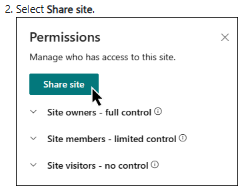
Group-connected team sites require additional care. Microsoft 365 group membership does not have a view-only role, and private or shared Teams channel sites have permissions managed through Teams. Do not add every reader as a group member simply to grant access.
Write a short audience statement before creating content: “All employees may read general guidance; the content team may edit it; restricted departmental procedures stay in separately controlled areas.” Use that statement to evaluate the destination site, not just individual article links.
Build a knowledge base with modern SharePoint pages
This route uses ordinary modern pages, not the Knowledge Base preview. The example is a fictional Employee Help site with a guide called Find the approved presentation template. It illustrates a content structure, not a tested company deployment.
1. Create or select the destination site
Use an existing site when its audience and ownership already fit. To create a communication site in the documented SharePoint Build experience, open Build → Site, choose Communication site, select a suitable template, and complete the site details. If self-service creation is unavailable, ask your administrator to create the site rather than bypassing the restriction. Microsoft documents the process in its communication-site setup guide.
Give Employee Help a narrow purpose. Start with a few task-based areas, such as Getting Started, Everyday Tools, and Brand Resources. Avoid reproducing the entire organizational chart unless employees genuinely use it to find answers.
2. Create one complete article
From the site home page, choose + New → Page, select a blank template, and create the page. Add a descriptive title, then use text and other necessary web parts for the instructions. Modern pages are stored in the Site Pages library; the page-creation guide explains the editor and its available entry points.
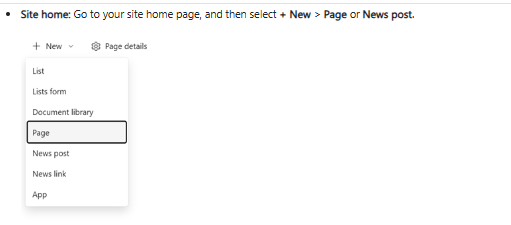
Write the answer before spending time on decoration. A useful article establishes who it is for, what the reader needs, what action to take, and what success looks like.
| Article element | Filled fictional example |
|---|---|
| Title | Find the approved presentation template |
| Audience and prerequisite | Employees preparing company presentations. Sign in with your work account and have reading access to Brand Resources. |
| Answer and steps | Open Employee Help, follow Brand Resources, and open Presentation Templates. Select the template marked as the current approved version and create your working copy. Do not overwrite the master template. |
| Expected result | You have a separate presentation using the approved layout, while the master remains unchanged. |
| When something fails | If access is denied or the current template is unclear, contact the Brand Operations owner. Do not use an unverified copy from an old email. |
| Accountable owner | Brand Operations, responsible for checking the article when the approved template changes. |
This is an editorial blueprint, not a Microsoft-provided template. For a real article, link to the approved resource and verify that its intended readers can open it. Keep confidential instructions out of a broadly shared example.
3. Add metadata that supports real maintenance
For modern pages, create custom columns in the Site Pages library to store article properties. Open Settings → Site contents → Site Pages, then use Add column. Microsoft’s page-details guide explains how those columns become available in the library and Page details pane.
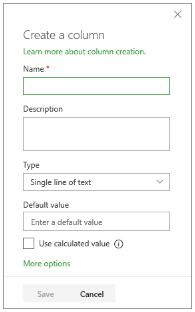
A practical starting set is a Topic choice, a Content owner person field, and Last reviewed and Next review date fields. These are proposed custom properties, not built-in guarantees that someone has checked the article. Keep the number of required fields small enough that authors will maintain them.
To display useful metadata to readers, the Page properties web part can expose supported properties on a modern page. Showing an accountable owner is useful; labeling a page “Approved” does not itself create an approval process.
4. Save a reusable article template
Once the layout works, save it as a page template. Microsoft documents Save as template from the page’s save menu, with an alternative Promote → Save as page template route for a published page. Authors can then select it under Saved on this site.
The template documentation identifies important boundaries: templates cannot be created from home pages, are not reusable across sites or groups through this feature, and do not update existing pages when changed. Treat the template as a consistent starting point, not a centrally enforced layout.
5. Build a simple starting page
On the Employee Help home page, add a short explanation of the library and links to its main task areas. The Quick Links web part supports adding links and choosing a presentation layout. Use it to point readers toward useful destinations rather than filling the page with every article.
For the example, Brand Resources should lead clearly to the presentation-template guide and its approved source. Add a visible route for reporting a missing or outdated answer. Start with navigation you can maintain manually; add more sophisticated rollups only when the growing library needs them.
6. Publish the version readers should receive
Saving a modern page is not the same as publishing it. The editor may show Save as draft or a save-and-exit variation when coauthoring is enabled. Use Publish to release a new page and Republish for an updated published page. Microsoft’s page-lifecycle guide distinguishes these states.
If formal review is required, a site owner can configure Automate → Power Automate → Configure page approval flow from the pages library. This changes the publishing process for new and updated pages in that library; it is not enabled simply by adding a Review status column. Follow the approval-flow instructions and confirm the flow’s connections and licensing before extending it.
The approval prerequisites include major and minor versioning. Validate the process with a sample page before applying it to important content. This modern-page workflow should not be assumed to govern native Knowledge Base pages.
Create a native SharePoint Knowledge Base when the preview is available
For eligible organizations, Microsoft documents manual creation without a Microsoft 365 Copilot license or Copilot credits. You still need the feature and permission to create content on the destination site. The manual creation guide gives this route:
- On the destination site, select + New → Knowledge base. Alternatively, use Build → Knowledge base and choose the destination.
- Start with blank content and complete the creation prompts.
- Within the knowledge base, select New → Blank page, name it, and write an introduction directing readers to the main topics.
- Select Save and exit. Add task-focused KB pages using the same process.
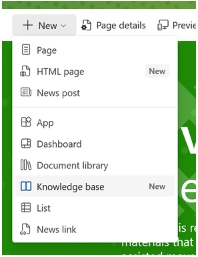
Use the Visual editor or the Source editor for Markdown. Page properties are available through Edit → Properties → Add property and are stored as YAML frontmatter. Do not apply Site Pages column instructions to these properties without checking the native workflow.
If the option is absent, ask your administrator to confirm availability and permissions. Microsoft’s rollout announcement also specifies usage-based billing enablement for preview access. That eligibility condition is separate from whether a particular manual action consumes credits. Do not purchase Copilot on the assumption that it will automatically expose the feature.
Protect access when sharing pages and reusing sources
Audience targeting is not authorization. Microsoft’s communication-site guidance explains that targeting can change which pages appear in navigation or content displays without preventing other permitted users from finding them through search. Restrict the content itself when an audience must not read it.
For modern sites, keep the permission structure understandable. Microsoft recommends avoiding unnecessary broken inheritance in Site Pages because it can create confusing access behavior. Separate content with genuinely different audiences into clearly governed areas rather than relying on dozens of exceptions.
For the native preview, sharing a KB page covers that page and its subpages—not the whole knowledge base, linked sources, or other assets. To provide broader reading access, a site owner can add readers as site visitors, but that may expose more than the knowledge base. Review the destination site before doing so.
Reusing a restricted source creates another boundary. Microsoft’s Copilot guidance warns that copied information becomes visible to people who can access the knowledge base even when they cannot open the original source. A citation does not protect the copied text or grant access to its source.
For example, a general employee article should not reproduce confidential comments from a restricted brand-review document. Approve the material for the destination audience first, then verify the page, images, attachments, and source links as an ordinary reader.
Import existing content into the native knowledge base carefully
Native KB imports are one-time copies, not ongoing synchronization. Source permissions and file-level sensitivity labels do not carry over. Microsoft’s import documentation describes these supported routes:
| Source | Import route | Important check |
|---|---|---|
| Markdown | Use New → Import for .md files or a folder. | Referenced images are not copied automatically; preserve relative structure and check links. |
| Confluence | Provide a normal HTML export ZIP without reorganizing it. | Review the migration report; macros and complex formatting may change, and history or permissions may not transfer. |
| Classic SharePoint wiki | Select eligible wiki pages in Site Pages and choose Organize into knowledge base. | This is not a conversion route for every classic page or publishing layout. |
Classic wiki migration also requires the source and destination to be in the same Microsoft 365 organization and geolocation. Avoid simultaneous imports into the same destination, and inspect partial results before retrying: a full retry can introduce duplicates.
Pilot a representative sample before a large migration. Decide which copy will become authoritative and who will maintain it. Keep the original available until the new articles, assets, links, and reader access have been checked.
Make the right answer discoverable
Test navigation and search separately. Ask someone unfamiliar with the example article to find the approved presentation template using their own wording. A useful title and a clear route from Brand Resources should work even when the reader does not know your internal naming convention.
For modern SharePoint search, visibility depends on indexing settings and permissions. Microsoft’s searchability guide explains that results are security-trimmed: readers see content they are permitted to access. A page can also be accessible by direct link while excluded from search by site or library settings.
When a new article is missing, first confirm its published state, direct-link access, search scope, and search settings. Reindexing is not an instant refresh. The search-schema documentation explains that reindex requests are processed through crawling. Adding a Topic column also does not automatically create a reader-facing search filter; managed-property mapping and the chosen search experience require separate configuration.
For native KB pages, Microsoft documents navigation and title search within the knowledge base, plus discovery through SharePoint or Microsoft 365 search. The discovery guide also describes page contents navigation. Check whether a result opens the curated article or an underlying source before relying on it.
Keep articles current without confusing activity with accuracy
Assign an accountable owner to each important topic. Review an article when its underlying process, source document, or audience changes. A recent formatting edit does not establish that the instructions were substantively checked.
For modern pages, maintain a review queue using the custom properties you chose. A Next review date is a useful record, but it does not send reminders unless you separately configure that automation. Keep a clear correction route so readers can flag a broken link or an instruction that no longer works.
For native KB pages, version history is available through the last-edited information or More commands, subject to library settings. Review history when necessary, but do not treat it as a complete backup or an accuracy certificate.
Review Copilot updates before trusting them
Native KB updates through Copilot occur when requested; changing a source does not automatically update the derived guidance. Microsoft’s maintenance instructions recommend reviewing proposed changes and conflicts. During preview, AI updates can also reverse manual edits or recreate deleted KB pages.
A health check identifies structural problems such as broken links or incomplete source references; it does not verify factual accuracy. Use it to find work for a reviewer, not to replace the reviewer.
After changing the approved presentation template, check the article’s instructions, its source link, and the actual file a reader receives. If AI assists with the update, compare its revision with the approved source before accepting it.
Understand SharePoint licensing and optional AI costs
Start by confirming that your organization’s subscription includes the required SharePoint access. Microsoft’s plan comparison lists current purchasing options. An existing subscription may reduce incremental spending, but it does not make SharePoint universally free or include every AI and governance capability.
For the native preview, the task-level licensing guidance separates these activities:
| Activity | Additional AI requirement |
|---|---|
| Manually create, edit, import, read, or search KB content | No Copilot license or credits for these actions; appropriate SharePoint access and feature availability remain necessary. |
| Use Copilot to create, update, or check the health of a knowledge base | Copilot credits. |
| Ask Copilot to answer questions from KB pages | A Microsoft 365 Copilot license, with the documented reading-based questions not consuming Copilot credits. |
Classify the action, not just its wording. A request phrased as “Can you update these pages?” is still a change to the knowledge base. Preview billing terms can change; have the administrator confirm eligibility, spending controls, and the intended workflow before enabling AI-assisted maintenance.
Keep any third-party portal, search component, migration service, or custom automation in a separate budget. None should be treated as mandatory merely because a vendor’s demonstration uses it.
Validate the knowledge base before expanding it
Finish a small, non-sensitive pilot before importing the entire library. Use the same article to test the full reader journey rather than checking isolated administration screens.
- Check the author’s workflow. Create the article, save it, complete any required review, and release the version readers should receive.
- Check the allowed reader. Open the article through navigation, search, and its direct link. Test every necessary source document and attachment.
- Check the denied reader. Use a test account outside a restricted audience and attempt the direct link. Do not rely on a hidden menu item as proof of protection.
- Check a real update. Change a harmless instruction, verify the reader receives the intended revision, and confirm the owner can identify what changed.
If something fails, investigate the specific boundary: feature availability, publishing state, permissions, linked assets, indexing, or source freshness. Do not broaden access or rebuild the site before identifying the cause.
SharePoint is worth considering when employee guidance belongs in an existing Microsoft 365 environment and someone can own its structure and upkeep. Evaluate another publishing approach when your main requirement is anonymous public support, a different editorial workflow, or a maintenance model your team cannot support. A successful knowledge base is not simply a site that exists—it is a dependable route from a reader’s question to an approved answer. For a broader comparison, review knowledge base software options by audience and publishing model.
Microsoft documentation, preview availability, and licensing guidance checked on November 1, 2026. The Employee Help example is illustrative; no live tenant implementation was performed.