Independent knowledge base software guide Evidence-led Updated 2026

Knowledge Base Disaster Recovery: Backups, Exports, Version History, and Business Continuity
When a knowledge base goes down, the impact is immediate. Customers lose access to self-service answers. Support agents lose trusted troubleshooting steps. Sales, success, engineering, and operations teams may lose the internal procedures they rely on during incidents.
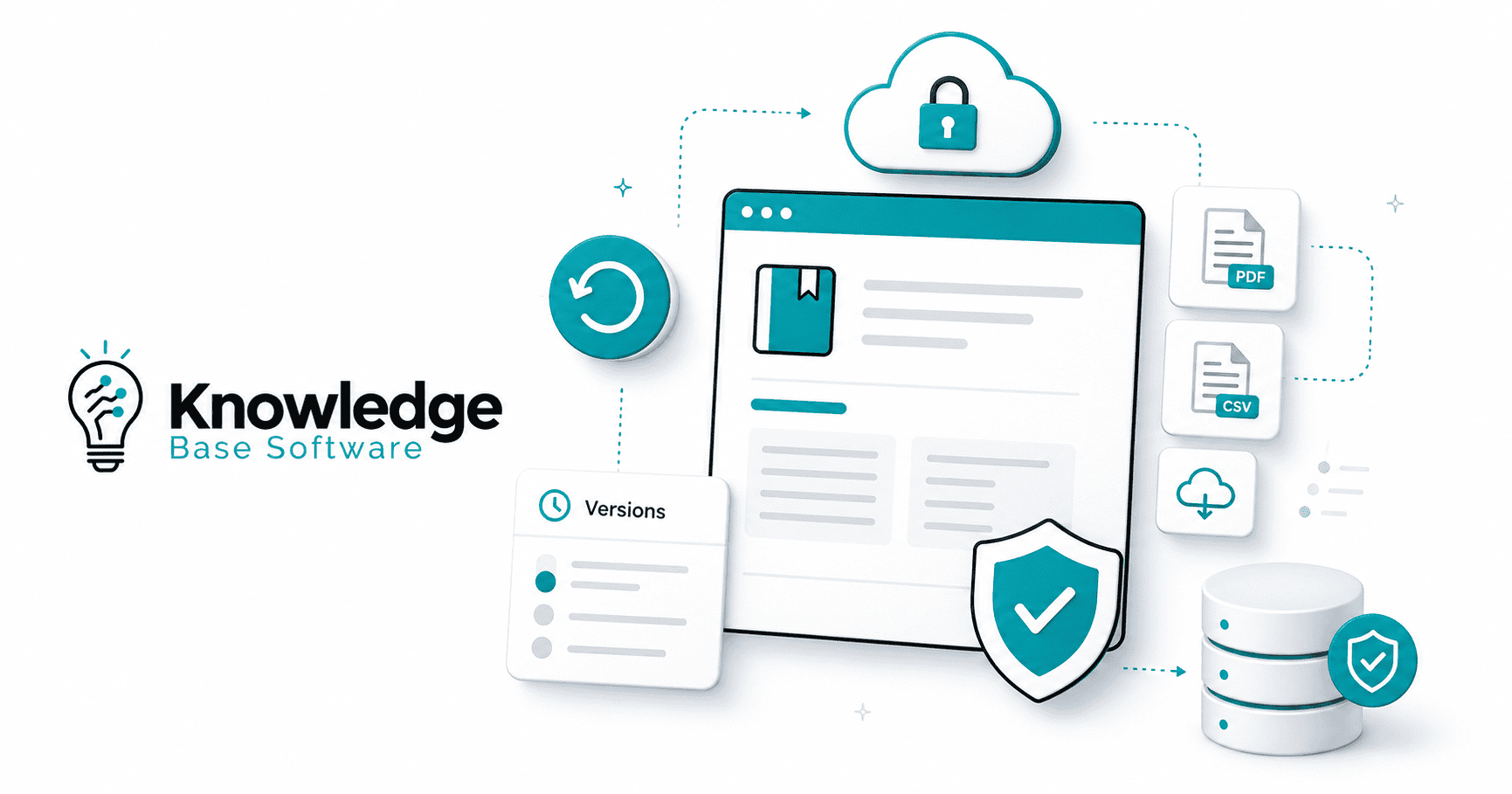
That is why Knowledge Base Disaster Recovery needs to be treated as an operational discipline, not a one-time export. A company knowledge base is not just a collection of articles. It contains support documentation, product guidance, internal runbooks, screenshots, embedded images, attachments, redirects, permissions, translations, article metadata, and sometimes the source material used by AI support bots.
Knowledge base disaster recovery is the process of protecting, restoring, and continuing access to a help center, internal knowledge base, or documentation hub after accidental deletion, content corruption, vendor outage, ransomware, failed migration, broken integration, or platform unavailability.
Backups, exports, version history, and business continuity all support recovery, but they are not the same thing. IBM’s explanation of backup and disaster recovery makes an important distinction: backup creates copies of data, while disaster recovery is the plan and process for using those copies to restore access to applications, data, and business operations.
What Is Knowledge Base Disaster Recovery?
Knowledge base disaster recovery is a structured plan for restoring access to customer-facing help centers, internal knowledge bases, support portals, documentation sites, and operational runbooks after disruption.
A strong disaster recovery plan answers practical questions:
- What content must be restored first?
- Where are the latest usable backups?
- Can deleted or corrupted articles be rolled back?
- Are images, attachments, redirects, and permissions recoverable?
- How will support teams continue answering customers if the primary knowledge base is unavailable?
- Who owns the restore process?
- How often is recovery tested?
NIST’s contingency planning guidance emphasizes evaluating systems and operations to determine recovery requirements and priorities, which is directly relevant to knowledge bases that support customer service, compliance, and internal operations.
| Control | What it protects | What it does not protect | Best use case | Recovery value |
|---|---|---|---|---|
| Backup | Recoverable copies of KB data | Team workflows unless documented | Restoring lost or corrupted content | High |
| Export | Portable copy of articles and metadata | Full platform configuration | Audits, migrations, emergency access | Medium to high |
| Version history | Article-level revisions | Full KB restore, assets, permissions, redirects | Rolling back bad edits | Medium |
| Disaster recovery | Restore process, owners, priorities, evidence | Business operations outside the plan | Recovering KB service after disruption | Very high |
| Business continuity | Support operations during outage | Technical restoration by itself | Keeping teams productive while KB is down | Very high |
Why Your Knowledge Base Needs a Disaster Recovery Plan
A knowledge base is often treated as “content,” but in practice it is operational infrastructure. If it fails, support quality, customer trust, and internal execution can fail with it.
A disaster recovery plan protects against:
- Customer self-service disruption: Customers cannot resolve common issues on their own.
- Support ticket spikes: Agents receive questions the help center normally deflects.
- Loss of internal procedures: Teams may lose access to escalation paths, incident runbooks, or product workarounds.
- Failed compliance evidence: Regulated teams may need historical SOPs, audit logs, approvals, and publication records.
- Deleted or corrupted articles: A single bad bulk edit can damage hundreds of support pages.
- Vendor or platform outage: SaaS availability does not guarantee your team has a usable emergency copy.
- Broken images and attachments: A restored article is not complete if screenshots, PDFs, and embedded files are missing.
- AI bot failure: If your AI support assistant depends on KB content, missing or outdated articles can produce poor answers.
- Localization risk: Multilingual support breaks when translations are not backed up with the source content.
- Access-control risk: Internal-only procedures may become unavailable, or worse, restored with incorrect permissions.
Common Knowledge Base Disaster Scenarios
Knowledge base incidents are rarely dramatic at first. They often begin as a routine update, migration, integration, or permissions change.
Common scenarios include:
- Accidental deletion of high-value articles. A manager removes outdated content but deletes an active troubleshooting guide used by support every day.
- A bad bulk edit overwrites hundreds of articles. Find-and-replace changes product names, code snippets, links, or warnings incorrectly.
- The help center platform is unavailable. Customers cannot access self-service documentation during a product incident.
- A compromised admin account deletes or modifies content. Ransomware and account takeover risks apply to SaaS tools, not only servers.
- A migration loses metadata. Article bodies move successfully, but redirects, tags, categories, authors, timestamps, and SEO metadata are lost.
- Version history exists but assets are missing. Text can be rolled back, but images, attachments, and embedded videos are not recoverable.
- An export exists but cannot be re-imported cleanly. CSV, HTML, or JSON files are useful, but not always structured for direct restoration.
- AI support bots serve outdated answers. The bot continues using stale KB content after source articles are removed or corrupted.
- The public help center is down during an outage. Customers need urgent product incident guidance, but the main documentation site is unavailable.
What Should Be Included in a Knowledge Base Backup?
A real knowledge base backup is more than article text. If you only export titles and body copy, you may have a reference archive, not a recovery-ready backup.
| Backup item | Why it matters for recovery |
|---|---|
| Article title | Needed for identification, search, and agent use |
| Body HTML or Markdown | Core article content |
| Article ID | Helps map old and restored records |
| Slug or URL | Preserves links, SEO, and customer bookmarks |
| Category, collection, or folder hierarchy | Restores navigation and information architecture |
| Tags and labels | Supports search, filtering, automation, and reporting |
| Author and owner | Helps governance and review accountability |
| Created and updated timestamps | Important for audits and freshness reviews |
| Publication status | Prevents drafts from becoming public accidentally |
| Version or revision history | Enables article-level rollback and investigation |
| Translations and locales | Protects multilingual support operations |
| Attachments | Restores PDFs, files, templates, and downloadable assets |
| Screenshots and embedded images | Critical for troubleshooting and product guidance |
| Videos or embedded assets | Needed when articles rely on visual walkthroughs |
| Internal notes | Preserves agent-only context |
| Permissions and access rules | Prevents private content exposure or loss of access |
| Redirects | Protects SEO, bookmarks, and internal links |
| Related articles | Restores navigation paths and contextual recommendations |
| SEO metadata | Preserves search titles, descriptions, and indexing signals |
| Custom fields | Supports workflows, ownership, and reporting |
| Templates, snippets, reusable blocks | Restores shared content components |
| Audit logs where available | Supports incident review and compliance evidence |
| Search synonyms or configuration | Preserves self-service discoverability |
| Bot or AI source mappings | Keeps AI answers aligned with approved knowledge |
Backups vs Exports vs Version History: Which One Do You Need?
You usually need all three.
Backups are for recoverability. Exports are for portability, emergency access, compliance, and audits. Version history is for article-level rollback. None of these replaces the others.
Some platforms provide APIs that can be used to export or back up help center articles. For example, Zendesk’s developer documentation describes using its Help Center API to create backup copies of knowledge base articles, but vendor capabilities, limitations, attachments, and restore behavior should always be verified before relying on them for disaster recovery.
| Method | Best for | Limitations | Recovery speed | Automation level | Recommended frequency |
|---|---|---|---|---|---|
| Manual export | One-time audit or migration | Easy to forget; may omit assets | Slow to medium | Low | Monthly or before major changes |
| Scheduled export | Routine content archive | May not be import-ready | Medium | Medium | Daily or weekly |
| API backup | Articles, metadata, assets, taxonomy | Requires monitoring and token security | Medium to fast | High | Daily or more often |
| Database backup | Self-hosted KB platforms | Not available for most SaaS tools | Fast if tested | High | Based on RPO |
| Version history | Rolling back article edits | Not full DR; may miss assets and permissions | Fast | Built-in | Continuous |
| Static HTML mirror | Emergency read-only access | Not a full restore method | Fast for reading | Medium | Daily or weekly |
| Third-party backup tool | SaaS data protection and restore workflows | Vendor coverage varies | Medium to fast | High | Daily or continuous |
Set RTO and RPO for Your Knowledge Base
Two recovery metrics matter most:
RTO, or Recovery Time Objective, is how quickly the knowledge base must be usable again after an outage.
RPO, or Recovery Point Objective, is how much recent content change the business can afford to lose.
IBM describes RTO as the time needed to restore normal operations after an incident and RPO as the amount of data loss a business can tolerate and still recover.
These targets should be based on business impact, not guesswork.
The following RTO/RPO values are illustrative examples, not official standards.
| Knowledge base type | Suggested RTO | Suggested RPO | Reasoning | Recovery method |
|---|---|---|---|---|
| Public customer help center | 1–4 hours | 4–24 hours | Customers and agents need self-service answers | Static mirror plus API backup |
| Internal support runbook library | 30–60 minutes | 1–4 hours | Agents need procedures during incidents | Read-only mirror plus export |
| Compliance or SOP KB | 4–24 hours | 24 hours | Accuracy and evidence matter more than speed | Versioned backup plus audit records |
| Product documentation portal | 4–12 hours | 24 hours | Product guidance must remain accessible | HTML export plus redirect plan |
| AI chatbot knowledge source | 1–4 hours | 1–4 hours | Bot quality depends on source freshness | Source mapping plus rollback controls |
These are example targets, not universal rules. A mission-critical internal runbook may need a shorter RTO than a public documentation site. A compliance knowledge base may need stricter retention and evidence controls than a marketing-facing help center.
Build a Knowledge Base Backup Strategy
A strong knowledge base backup strategy should be automated, monitored, secure, and tested.
Use these principles:
- Use automated scheduled backups where possible.
- Use API exports for article content, article metadata, categories, tags, permissions, translations, and assets.
- Export attachments and embedded images separately if your platform does not include them in the main article export.
- Preserve taxonomy, redirects, URLs, labels, and publication status.
- Store backups in more than one location.
- Use encrypted and access-controlled storage.
- Maintain offline or immutable backup copies for ransomware resilience.
- Use retention policies such as daily, weekly, monthly, and quarterly copies.
- Log backup success and failure.
- Alert the owner when backup jobs fail.
- Apply least privilege to backup credentials.
- Rotate API tokens.
- Avoid storing credentials in the same system being backed up.
- Periodically sample backups and validate that content, images, links, and metadata are usable.
CISA’s ransomware guidance emphasizes maintaining offline, encrypted backups of critical data and regularly testing backup availability and integrity in disaster recovery scenarios. CISA’s Cybersecurity Performance Goals also call for offsite/offline backup storage and recurring recovery testing.
A common practical pattern that maps to CISA-style backup resilience guidance is 3-2-1-1-0:
- 3 copies of critical KB data.
- 2 storage types or locations.
- 1 offsite copy.
- 1 immutable or offline copy.
- 0 untested recovery errors.
Create an Emergency Knowledge Base Export
Full restoration is ideal, but support teams also need readable emergency documentation. A readable export helps agents continue working even before the primary platform is restored.
Your emergency knowledge base export can include:
- Static HTML copy of top customer-facing articles.
- PDF bundles for critical internal runbooks.
- Markdown repository for engineering and support documentation.
- CSV or JSON archive for article inventory and metadata.
- Read-only internal mirror.
- Offline access for support leads.
- Critical incident folder.
- Most-used articles list.
- Product outage runbooks.
- Contact and escalation procedures.
- Customer communication templates.
- Backup of support macros and canned responses.
The goal is not to recreate the full platform. The goal is to preserve access to the knowledge that keeps support, success, and engineering teams functional during an outage.
Use Version History Without Mistaking It for a Backup
Version history is valuable, but it is not a complete disaster recovery strategy.
Use version history when:
- A single article was edited incorrectly.
- A paragraph, warning, code example, or troubleshooting step needs rollback.
- You need to compare article revision history.
- You need to identify who changed content and when.
Do not rely on version history alone when:
- Articles were deleted.
- Attachments or screenshots were removed.
- Categories, redirects, tags, or permissions changed.
- A bulk update corrupted many articles.
- The entire platform is unavailable.
- A compromised administrator modified content maliciously.
Rollback is useful only if the system storing the revision history is available and trustworthy. For disaster recovery, version history should be supported by external backups, exports, audit logs, and restore testing.
Business Continuity: Keeping Support Running When the Knowledge Base Is Down
Business continuity is about keeping work moving while recovery is underway.
IBM distinguishes disaster recovery from business continuity by explaining that disaster recovery focuses more specifically on IT restoration, while business continuity addresses broader preparedness and continued business functions.
For a knowledge base outage, business continuity should include:
- Emergency read-only KB mirror.
- Internal support runbooks.
- Cached top articles.
- Status page updates.
- Customer communication templates.
- Support macro backup.
- Escalation matrix.
- Ownership list.
- Manual workaround documents.
- AI bot fallback behavior.
- Temporary disabling or limiting of AI answers if the source knowledge is unavailable or outdated.
- Communication plan for support, success, sales, and engineering.
| Stage | What to do |
|---|---|
| Before outage | Maintain exports, mirrors, escalation contacts, backup macros, and restore procedures |
| During outage | Switch agents to emergency docs, update the status page, pause risky edits, and limit AI answers if needed |
| After restoration | Validate content, assets, permissions, search, redirects, and bot sources before declaring recovery complete |
Knowledge Base Disaster Recovery Playbook
Use this playbook when your knowledge base is deleted, corrupted, inaccessible, or unreliable.
- Declare the incident. Name an incident owner and communication channel.
- Identify scope. Determine whether the issue affects one article, a category, the entire KB, the platform, or a security incident.
- Freeze risky changes. Stop bulk edits, imports, sync jobs, migrations, and AI re-indexing.
- Preserve logs and evidence. Capture audit logs, user actions, timestamps, API jobs, and vendor status updates.
- Choose the restore source. Use version history, API backup, scheduled export, static mirror, or vendor restore depending on scope.
- Validate backup integrity. Confirm that files open, article bodies are complete, and assets are available.
- Restore in staging if possible. Test structure, permissions, redirects, and formatting before production restore.
- Recover articles and assets. Restore body content, images, attachments, metadata, redirects, translations, and permissions.
- Validate search and navigation. Test top queries, categories, filters, related articles, and internal links.
- Notify support teams. Tell agents what is restored, what is still missing, and what workaround to use.
- Monitor customer impact. Watch ticket volume, search failures, bot deflections, and broken link reports.
- Conduct a post-incident review. Identify root cause and recovery gaps.
- Update the DR plan. Improve backups, alerts, access controls, restore steps, and vendor requirements.
How to Test Knowledge Base Recovery
Before a recovery rehearsal, use the free Knowledge Base Export & Recovery Readiness Validator to inspect a real CSV, JSON, or ZIP export in the browser, compare an optional post-restore package, and preserve a reviewable evidence report.
A backup strategy is only trustworthy after restore testing. Atlassian’s public resilience documentation describes DR testing as covering both process and technology, with exercises ranging from tabletop simulations to broader failover tests; the same principle applies to knowledge base recovery.
| Test item | Owner | Frequency | Pass/fail criteria | Evidence to keep |
|---|---|---|---|---|
| Tabletop exercise | Support operations | Quarterly | Team can explain roles and steps | Scenario notes |
| Article-level restore | Knowledge manager | Monthly | Article restored with correct formatting | Before/after screenshots |
| Full export validation | IT or RevOps | Monthly | Export opens and includes metadata | Export log |
| Attachment restore test | IT | Quarterly | Images and files load correctly | Asset checklist |
| Redirect test | Web or SEO owner | Quarterly | Old URLs resolve correctly | Crawl report |
| Permission test | Security owner | Quarterly | Private content remains private | Access review |
| Search test | Support ops | Quarterly | Top queries return expected articles | Search test sheet |
| Multilingual test | Localization owner | Quarterly | Translations map to source articles | Locale report |
| Emergency mirror test | IT | Monthly | Mirror is accessible to agents | Access log |
| AI source recovery test | AI/support owner | Quarterly | Bot uses current approved sources | Bot test transcript |
Security and Compliance Considerations
Knowledge base backups can contain sensitive information. Internal KBs may include credentials handling procedures, customer examples, private incident notes, architecture diagrams, security workflows, and compliance evidence.
Protect KB backups with:
- Encryption at rest and in transit.
- Role-based access control.
- Least privilege for backup tools and API tokens.
- Immutable or offline backup copies.
- Audit logs for export, restore, and deletion actions.
- Data residency controls where required.
- Retention and deletion policies.
- Legal hold procedures.
- Backup access reviews.
- API token rotation.
- Separate storage from the primary KB environment.
- Monitoring for failed or unusual export activity.
For SOC 2, ISO 27001, or similar assurance work, keep evidence of backup schedules, restore tests, access reviews, incident response exercises, and vendor due diligence.
Questions to Ask Your Knowledge Base Vendor
Do not assume your SaaS vendor’s internal backup program gives you customer-controlled recovery. Ask direct questions:
- Can we export all articles?
- Are exports manual or scheduled?
- Is there an API for articles, categories, assets, translations, and versions?
- Does export include images and attachments?
- Does export include metadata, redirects, permissions, and version history?
- Can exported data be re-imported?
- What is the vendor’s backup frequency?
- Are backups geo-redundant?
- What are the vendor’s RTO and RPO commitments?
- Can customers request point-in-time restore?
- Are deleted articles recoverable?
- How long is deleted content retained?
- Are backups encrypted?
- Are backups immutable?
- Are audit logs available?
- What happens during a regional outage?
- How are customer notifications handled?
- Is there a sandbox or staging restore option?
Mature SaaS trust pages often describe monitoring, alerting, DR testing, RTO, RPO, and recoverability practices, but every customer should verify what is actually included in their plan, contract, and product tier.
Common Mistakes to Avoid
Avoid these knowledge base disaster recovery mistakes:
- Assuming SaaS vendor backups equal customer-controlled recovery.
- Relying only on version history.
- Exporting only article text.
- Forgetting images and attachments.
- Forgetting redirects and URLs.
- Not testing restore.
- Not assigning an owner.
- Not defining RTO and RPO.
- Storing backups in the same compromised environment.
- Backing up content but not access rules.
- Ignoring translations.
- Not documenting emergency support workflows.
- Letting API tokens expire unnoticed.
- Failing to monitor backup jobs.
- Skipping post-incident review.
Knowledge Base Disaster Recovery Checklist
Use this checklist to audit your current readiness.
Inventory
- List all customer-facing and internal knowledge bases.
- Identify critical articles, runbooks, and SOPs.
- Map KB dependencies, including bots, macros, and integrations.
Backup
- Automate scheduled backups.
- Include content, metadata, assets, translations, and permissions.
- Store copies in separate, secure locations.
Export
- Maintain readable HTML, Markdown, CSV, or JSON exports.
- Keep emergency access copies for support teams.
- Validate exports after major platform changes.
Version control
- Enable version history where available.
- Review article revision history after major edits.
- Use rollback for article-level issues only.
Security
- Encrypt backups.
- Use least privilege.
- Rotate API tokens.
- Maintain immutable or offline copies.
Restore
- Document restore procedures.
- Test article-level and full recovery.
- Validate links, redirects, permissions, and search.
Business continuity
- Maintain emergency documentation.
- Prepare customer communication templates.
- Define AI bot fallback behavior.
Testing
- Run tabletop exercises.
- Perform restore testing.
- Keep evidence of results and fixes.
Governance
- Assign ownership.
- Define RTO and RPO.
- Review the plan after incidents and major migrations.
FAQ About Knowledge Base Disaster Recovery
1. What is knowledge base disaster recovery?
Knowledge base disaster recovery is the plan for restoring a help center, internal knowledge base, support documentation portal, or runbook library after deletion, corruption, outage, cyberattack, failed migration, or vendor unavailability.
2. How do you back up a knowledge base?
Back up a knowledge base by exporting article content, metadata, categories, tags, permissions, translations, images, attachments, redirects, and audit data where available. Use scheduled exports, API backups, static mirrors, and secure offsite storage.
3. Is version history enough for disaster recovery?
No. Version history is useful for rolling back individual article edits, but it is not a full disaster recovery strategy. It may not protect deleted content, attachments, permissions, redirects, taxonomy, or platform availability.
4. How often should a knowledge base be backed up?
Backup frequency should match your RPO. A fast-changing customer help center may need daily or more frequent backups. A slower compliance knowledge base may use daily or weekly backups with stronger retention and audit controls.
5. What is the difference between a knowledge base backup and export?
A backup is designed for recoverability. An export is designed for portability, reporting, compliance, migration, or emergency access. A good recovery strategy often uses both.
6. What should be included in a help center backup?
A help center backup should include article titles, body content, IDs, URLs, hierarchy, tags, metadata, publication status, translations, images, attachments, permissions, redirects, related articles, SEO metadata, and version data where available.
7. How do RTO and RPO apply to a knowledge base?
RTO defines how quickly the knowledge base must be accessible again. RPO defines how much recent content change the organization can afford to lose. Critical support runbooks usually need shorter RTO and RPO targets than low-risk documentation.
8. How can support teams continue working if the knowledge base is down?
Support teams can use an emergency read-only KB mirror, cached top articles, PDF runbooks, backup macros, escalation matrices, communication templates, and temporary AI bot restrictions until the primary platform is restored.
9. Should knowledge base backups be offline or immutable?
Yes, at least one copy should be offline or immutable where possible. This reduces the risk that ransomware, compromised admin accounts, or faulty automation can delete or alter every backup.
10. How do you test knowledge base recovery?
Test recovery by restoring sample articles, validating exports, checking attachments, testing redirects, reviewing permissions, confirming search results, restoring multilingual content, testing the emergency mirror, and running tabletop exercises.